<!DOCTYPE html>
    <html lang="vi" xmlns="http://www.w3.org/1999/xhtml" prefix="og: http://ogp.me/ns#">
    <head>
<title>Phát Thành Đạt Cách cài đặt VPN trên Windows Server 2019</title>
<meta name="description" content="Cách cài đặt VPN trên Windows Server 2019 - Savefile - Tin Tức -...">
<meta name="author" content="Phát Thành Đạt - Dịch vụ sửa chữa máy tính hóc môn">
<meta name="copyright" content="Phát Thành Đạt - Dịch vụ sửa chữa máy tính hóc môn [info@phatthanhdat.com]">
<meta name="generator" content="NukeViet v4.5">
<meta name="facebook-domain-verification" content="nv4brgbtr5jrhsej2o63m6qx7nz5ek">
<meta http-equiv="Content-Type" content="text/html; charset=utf-8">
<meta property="og:title" content="Cách cài đặt VPN trên Windows Server 2019">
<meta property="og:type" content="website">
<meta property="og:description" content="Savefile - Tin Tức - https&#x3A;&#x002F;&#x002F;phatthanhdat.com&#x002F;index.php&#x002F;savefile&#x002F;quan-tri-mang&#x002F;cach-cai-dat-vpn-tren-windows-server-2019-71.html">
<meta property="og:site_name" content="Phát Thành Đạt - Dịch vụ sửa chữa máy tính hóc môn">
<meta property="og:url" content="https://phatthanhdat.com/index.php/savefile/quan-tri-mang/cach-cai-dat-vpn-tren-windows-server-2019-71.html">
<link rel="shortcut icon" href="https://phatthanhdat.com/uploads/about/logonho.png">
<link rel="canonical" href="https://phatthanhdat.com/index.php/savefile/quan-tri-mang/cach-cai-dat-vpn-tren-windows-server-2019-71.html">
<link rel="alternate" href="https://phatthanhdat.com/index.php/rss/" title="Tin Tức" type="application/rss+xml">
<link rel="alternate" href="https://phatthanhdat.com/index.php/rss/quan-tri-mang/" title="Tin Tức - Quản Trị Mạng" type="application/rss+xml">
<link rel="alternate" href="https://phatthanhdat.com/index.php/rss/windows-server/" title="Tin Tức - Windows Server" type="application/rss+xml">
<link rel="alternate" href="https://phatthanhdat.com/index.php/rss/active-windows/" title="Tin Tức - Active Windows" type="application/rss+xml">
<link rel="alternate" href="https://phatthanhdat.com/index.php/rss/mang-may-tinh/" title="Tin Tức - Mạng Máy Tính" type="application/rss+xml">
<link rel="alternate" href="https://phatthanhdat.com/index.php/rss/quan-tri-mail-server/" title="Tin Tức - Quản Trị Mail Server" type="application/rss+xml">
<link rel="alternate" href="https://phatthanhdat.com/index.php/rss/y-nghia-cuoc-song/" title="Tin Tức - Ý nghĩa cuộc sống" type="application/rss+xml">
<link rel="alternate" href="https://phatthanhdat.com/index.php/rss/tien-ich/" title="Tin Tức - Tiện Ích" type="application/rss+xml">
<link rel="alternate" href="https://phatthanhdat.com/index.php/rss/facebook-add/" title="Tin Tức - Facebook Add" type="application/rss+xml">
<link rel="alternate" href="https://phatthanhdat.com/index.php/rss/nong-tren-mang/" title="Tin Tức - Nóng Trên Mạng" type="application/rss+xml">
<link rel="alternate" href="https://phatthanhdat.com/index.php/rss/covid-19/" title="Tin Tức - Covid 19" type="application/rss+xml">
<link rel="alternate" href="https://phatthanhdat.com/index.php/rss/hoc-duong/" title="Tin Tức - Học Đường" type="application/rss+xml">
<link rel="alternate" href="https://phatthanhdat.com/index.php/rss/tin-tuc-thi-truong/" title="Tin Tức - Tin Tức Thị Trường" type="application/rss+xml">
<link rel="alternate" href="https://phatthanhdat.com/index.php/rss/code-hay/" title="Tin Tức - Code hay" type="application/rss+xml">
<link rel="alternate" href="https://phatthanhdat.com/index.php/rss/kho-hang/" title="Tin Tức - Kho Hàng" type="application/rss+xml">
<link rel="alternate" href="https://phatthanhdat.com/index.php/rss/ai-tri-tue-nhan-tao/" title="Tin Tức - AI Trí Tuệ Nhân Tạo" type="application/rss+xml">
<link rel="alternate" href="https://phatthanhdat.com/index.php/rss/do-hoa/" title="Tin Tức - Đồ Hoạ" type="application/rss+xml">
<link rel="stylesheet" href="https://phatthanhdat.com/assets/css/font-awesome.min.css">
<link rel="stylesheet" href="https://phatthanhdat.com/themes/default/css/bootstrap.non-responsive.css">
<link rel="stylesheet" href="https://phatthanhdat.com/themes/default/css/style.css">
<link rel="stylesheet" href="https://phatthanhdat.com/themes/default/css/style.non-responsive.css">
<link rel="StyleSheet" href="https://phatthanhdat.com/themes/default/css/news.css">
<link rel="stylesheet" href="https://phatthanhdat.com/themes/default/css/custom.css">
<style type="text/css">
	body{background: #fff;}
</style>
<!-- Google Tag Manager -->
<!-- End Google Tag Manager -->

<!-- Facebook Pixel Code -->
<noscript><img height="1" width="1" style="display:none"
src="https://www.facebook.com/tr?id=219812430112623&ev=PageView&noscript=1"
/></noscript>
<!-- End Facebook Pixel Code -->
<!-- Messenger Plugin chat Code -->
    <div id="fb-root"></div>

    <!-- Your Plugin chat code -->
    <div id="fb-customer-chat" class="fb-customerchat">
    </div>
<script>(function(i,s,o,g,r,a,m){i['GoogleAnalyticsObject']=r;i[r]=i[r]||function(){
(i[r].q=i[r].q||[]).push(arguments)},i[r].l=1*new Date();a=s.createElement(o),
m=s.getElementsByTagName(o)[0];a.async=1;a.src=g;m.parentNode.insertBefore(a,m)
})(window,document,'script','https://www.google-analytics.com/analytics.js','ga');
ga('create', 'UA-133543348-1', '.phatthanhdat.com');
ga('send', 'pageview');
</script>
</head>
    <body>
<div class="zalo-chat-widget" data-oaid="1354977264109400055" data-welcome-message="R&#7845;t vui khi &#273;&#432;&#7907;c h&#7895; tr&#7907; b&#7841;n!" data-autopopup="0" data-width="" data-height=""></div>
<amp-ad width="100vw" height="320"
     type="adsense"
     data-ad-client="ca-pub-3722185033130810"
     data-ad-slot="5396409404"
     data-auto-format="rspv"
     data-full-width="">
  <div overflow=""></div>
</amp-ad>
<!-- Google Tag Manager (noscript) -->
<noscript><iframe src="https://www.googletagmanager.com/ns.html?id=GTM-KRZZ2CK"
height="0" width="0" style="display:none;visibility:hidden"></iframe></noscript>
<!-- End Google Tag Manager (noscript) -->
<div class="gcse-searchbox-only"></div>
<div id="print">
	<div id="hd_print">
		<h2 class="pull-left">Phát Thành Đạt - Dịch vụ sửa chữa máy tính hóc môn</h2>
		<p class="pull-right"><a title="Phát Thành Đạt - Dịch vụ sửa chữa máy tính hóc môn" href="https://phatthanhdat.com/">https://phatthanhdat.com</a></p>
	</div>
	<div class="clear"></div>
	<hr />
	<div id="content">
		<h1>Cách cài đặt VPN trên Windows Server 2019</h1>
		<ul class="list-inline">
			<li>Thứ tư - 04/08/2021 21:14</li>
			<li class="hidden-print txtrequired"><em class="fa fa-print">&nbsp;</em><a title="In ra" href="javascript:;" onclick="window.print()">In ra</a></li>
			<li class="hidden-print txtrequired"><em class="fa fa-power-off">&nbsp;</em><a title="Đóng cửa sổ này" href="javascript:;" onclick="window.close()">Đóng cửa sổ này</a></li>
		</ul>
		<div class="clear"></div>
		<div id="hometext">
			Bài viết hôm nay là hướng dẫn từng bước về cách cài đặt và cấu hình VPN trên&nbsp;<a href="https://phatthanhdat.com/quan-tri-mang/windows-server-2019-69.html" title="Tải Windows Server 2019 và khám phá những tính năng mới">Windows Server 2019</a>. Bài viết sẽ chỉ cho bạn cách có thể dễ dàng thiết lập VPN server cho môi trường nhỏ, văn phòng chi nhánh hoặc server được host.&nbsp;VPN
		</div>
		<div id="bodytext" class="clearfix">
			<p style="text-align: justify;">Bài viết hôm nay là hướng dẫn từng bước về cách cài đặt và cấu hình VPN trên&nbsp;<a href="https://phatthanhdat.com/quan-tri-mang/windows-server-2019-69.html" title="Tải Windows Server 2019 và khám phá những tính năng mới">Windows Server 2019</a>. Bài viết sẽ chỉ cho bạn cách có thể dễ dàng thiết lập VPN server cho môi trường nhỏ, văn phòng chi nhánh hoặc server được host.&nbsp;VPN (Mạng riêng ảo)&nbsp;server này cho phép bạn kết nối từ các client từ xa hoặc tường lửa đến Windows Server.</p>

<p style="text-align: justify;">Để cài đặt VPN trên Windows Server 2019, chỉ cần làm theo hướng dẫn từng bước sau:</p>

<h2 style="text-align: justify;">Cài đặt Remote Access Role</h2>

<p style="text-align: justify;">Đầu tiên, hãy cài đặt Remote Access qua Server Manager hoặc&nbsp;PowerShell.</p>

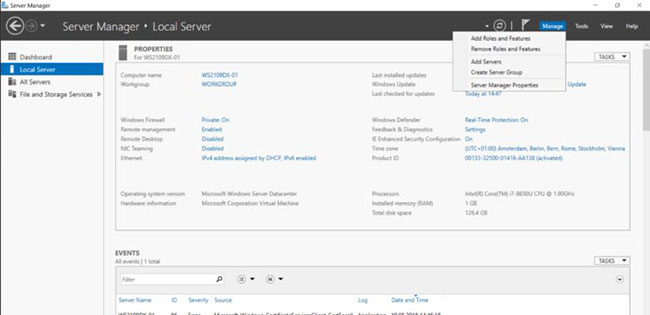
<p style="text-align: justify;">Mở&nbsp;<strong>Server Manager</strong>&nbsp;và chọn&nbsp;<strong>Add Roles and Features</strong>.</p>

<figure>
<div style="text-align: justify;">
<div style="text-align:center"><img alt="Chọn Add Roles and Features" data-i="0" data-src="https://st.quantrimang.com/photos/image/2020/09/17/cai-dat-vpn-tren-windows-server-2019-1.jpg" data-was-processed="true" height="412" src="https://st.quantrimang.com/photos/image/2020/09/17/cai-dat-vpn-tren-windows-server-2019-1.jpg" width="850" /></div>
</div>

<figcaption>
<div style="text-align: justify;">Chọn Add Roles and Features</div>
</figcaption>
</figure>

<p style="text-align: justify;">Chọn&nbsp;<strong>Remote Access Role</strong>&nbsp;và nhấp vào&nbsp;<strong>Next</strong>&nbsp;theo các bước trong trình hướng dẫn.</p>

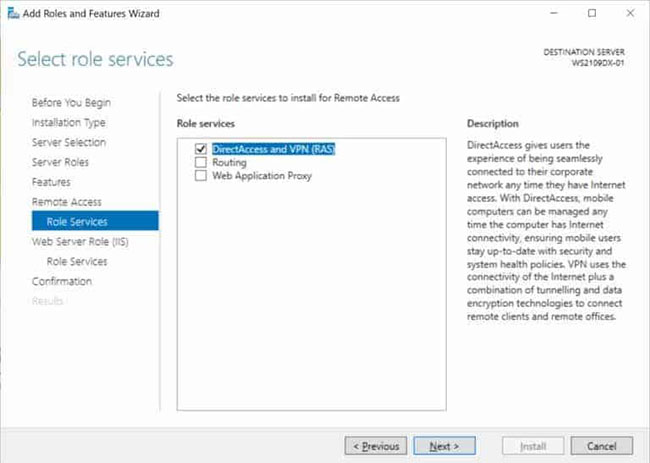
<p style="text-align: justify;">Ở bước&nbsp;<strong>Role Services</strong>, chọn&nbsp;<strong>DirectAccess and VPN (RAS)</strong>.</p>

<figure>
<div style="text-align: justify;">
<div style="text-align:center"><img alt="Chọn DirectAccess and VPN (RAS)" data-i="1" data-src="https://st.quantrimang.com/photos/image/2020/09/17/cai-dat-vpn-tren-windows-server-2019-2.jpg" data-was-processed="true" height="605" src="https://st.quantrimang.com/photos/image/2020/09/17/cai-dat-vpn-tren-windows-server-2019-2.jpg" width="850" /></div>
</div>

<figcaption>
<div style="text-align: justify;">Chọn DirectAccess and VPN (RAS)</div>
</figcaption>
</figure>

<p style="text-align: justify;">Ở bước cuối cùng, chọn&nbsp;<strong>Install</strong>&nbsp;để cài đặt Remote Access role.</p>

<p style="text-align: justify;">Điều này có thể yêu cầu khởi động lại server.</p>

<h2 style="text-align: justify;">Cài đặt và cấu hình VPN trên Windows Server 2019</h2>

<p style="text-align: justify;">Sau khi cài đặt thành công, bây giờ, bạn có thể khởi động trình hướng dẫn để cài đặt và cấu hình VPN server trong Windows Server 2019.</p>

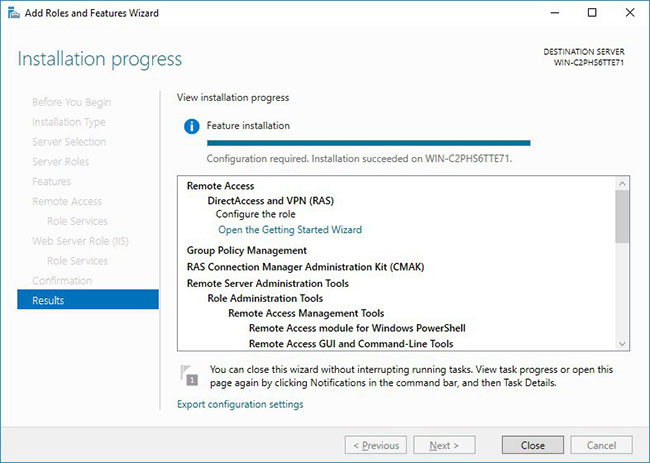
<p style="text-align: justify;">Sau khi các tính năng được cài đặt, có thể mất một lúc để hoàn thành, bạn sẽ thấy liên kết&nbsp;<strong>Getting Started Wizard</strong>. Nhấp vào&nbsp;<strong>Open the Getting Started Wizard</strong>.</p>

<figure>
<div style="text-align: justify;">
<div style="text-align:center"><img alt="Nhấp vào Open the Getting Started Wizard" data-i="2" data-src="https://st.quantrimang.com/photos/image/2020/09/17/cai-dat-vpn-tren-windows-server-2019-3.jpg" data-was-processed="true" height="605" src="https://st.quantrimang.com/photos/image/2020/09/17/cai-dat-vpn-tren-windows-server-2019-3.jpg" width="850" /></div>
</div>

<figcaption>
<div style="text-align: justify;">Nhấp vào Open the Getting Started Wizard</div>
</figcaption>
</figure>

<p style="text-align: justify;">Thao tác này sẽ mở ra một trình hướng dẫn mới, giúp bạn cấu hình server. Trên màn hình đầu tiên, chọn&nbsp;<strong>Deploy VPN only</strong>.</p>

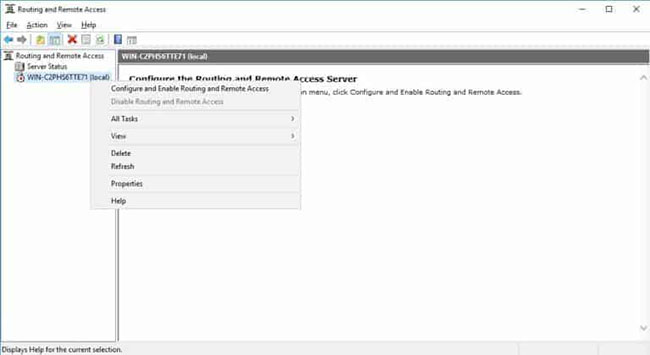
<p style="text-align: justify;">Thao tác này sẽ mở&nbsp;<strong>Routing and Remote Access Management Console</strong>.</p>

<p style="text-align: justify;">Nhấp chuột phải vào tên server và nhấn vào&nbsp;<strong>Configure and Enable Routing and Remote Access</strong>.</p>

<figure>
<div style="text-align: justify;">
<div style="text-align:center"><img alt="Nhấn vào Configure and Enable Routing and Remote Access" data-i="3" data-src="https://st.quantrimang.com/photos/image/2020/09/17/cai-dat-vpn-tren-windows-server-2019-4.jpg" data-was-processed="true" height="464" src="https://st.quantrimang.com/photos/image/2020/09/17/cai-dat-vpn-tren-windows-server-2019-4.jpg" width="850" /></div>
</div>

<figcaption>
<div style="text-align: justify;">Nhấn vào Configure and Enable Routing and Remote Access</div>
</figcaption>
</figure>

<p style="text-align: justify;">Trên trình hướng dẫn mới, hãy chọn&nbsp;<strong>Custom configuration.</strong></p>

<p style="text-align: justify;">Chọn&nbsp;<strong>VPN Access.</strong></p>

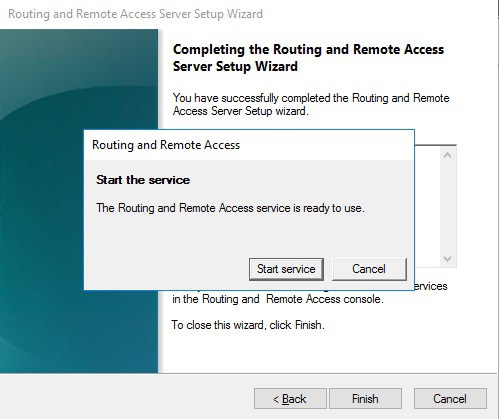
<p style="text-align: justify;">Sau khi bấm&nbsp;<strong>Finish</strong>, bây giờ, bạn có thể khởi động service&nbsp;<strong>Routing and Remote Access</strong>.</p>

<figure>
<div style="text-align: justify;">
<div style="text-align:center"><img alt="Khởi động service Routing and Remote Access" data-i="4" data-src="https://st.quantrimang.com/photos/image/2020/09/17/cai-dat-vpn-tren-windows-server-2019-5.jpg" data-was-processed="true" height="714" src="https://st.quantrimang.com/photos/image/2020/09/17/cai-dat-vpn-tren-windows-server-2019-5.jpg" width="850" /></div>
</div>

<figcaption>
<div style="text-align: justify;">Khởi động service Routing and Remote Access</div>
</figcaption>
</figure>

<h2 style="text-align: justify;">Cấu hình mạng và người dùng truy cập VPN</h2>

<p style="text-align: justify;">Nếu có&nbsp;<a href="https://quantrimang.com/tong-quan-ve-firewall-84474" title="Tường lửa (Firewall) là gì? Những kiến thức tổng quan về Firewall">tường lửa</a>&nbsp;giữa Internet và Windows Server, bạn phải mở cổng Firewall sau để chuyển tiếp chúng tới Windows Server:</p>

<ul>
	<li style="text-align: justify;">Đối với&nbsp;<a href="https://quantrimang.com/point-to-point-tunneling-protocol-la-gi-174003" title="PPTP (Point-to-Point Tunneling Protocol) là gì?">PPTP</a>: 1723 TCP và Protocol 47 GRE (còn được gọi là PPTP Pass-through).</li>
	<li style="text-align: justify;">Đối với L2TP over IPSEC: 1701 TCP và 500 UDP.</li>
	<li style="text-align: justify;">Đối với&nbsp;<a href="https://quantrimang.com/sstp-secure-socket-tunneling-protocol-la-gi-174780" title="SSTP (Secure Socket Tunneling Protocol) là gì?">SSTP</a>: 443 TCP.</li>
</ul>

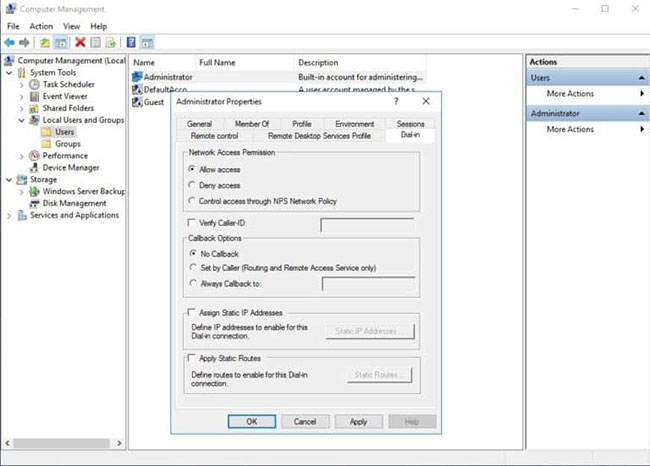
<p style="text-align: justify;">Sau khi cài đặt, người dùng phải được kích hoạt quyền truy cập từ xa để kết nối với VPN Server. Trên một server độc lập, điều này có thể được thực hiện trong Computer Management MMC. Trong môi trường domain, điều này có thể được thực hiện trong phần thuộc tính người dùng của một&nbsp;Active Directory&nbsp;user.</p>

<figure>
<div style="text-align: justify;">
<div style="text-align:center"><img alt="Kích hoạt quyền truy cập từ xa để kết nối với VPN Server" data-i="5" data-src="https://st.quantrimang.com/photos/image/2020/09/17/cai-dat-vpn-tren-windows-server-2019-6.jpg" data-was-processed="true" height="609" src="https://st.quantrimang.com/photos/image/2020/09/17/cai-dat-vpn-tren-windows-server-2019-6.jpg" width="850" /></div>
</div>

<figcaption>
<div style="text-align: justify;">Kích hoạt quyền truy cập từ xa để kết nối với VPN Server</div>
</figcaption>
</figure>

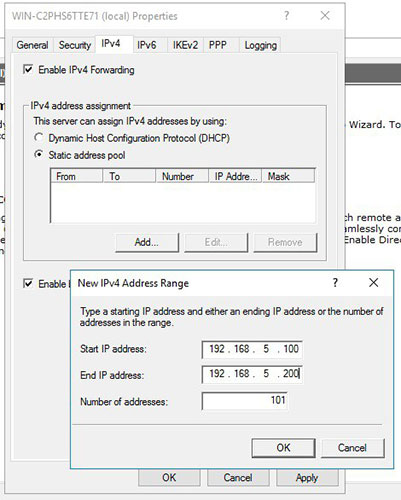
<p style="text-align: justify;">Nếu không có DHCP server trong môi trường, bạn phải thêm một IP address pool (dãy địa chỉ có sẵn cho client DHCP) tĩnh. Điều này thường cần thiết nếu bạn có một server duy nhất được host bởi một nhà cung cấp dịch vụ. Trong các thuộc tính của VPN server, bạn có thể nhấp vào tab&nbsp;<strong>IPv4</strong>, kích hoạt và cấu hình&nbsp;<strong>Static address pool</strong>.</p>

<figure>
<div style="text-align: justify;">
<div style="text-align:center"><img alt="Kích hoạt và cấu hình Static address pool" data-i="6" data-src="https://st.quantrimang.com/photos/image/2020/09/17/cai-dat-vpn-tren-windows-server-2019-7.jpg" data-was-processed="true" height="1060" src="https://st.quantrimang.com/photos/image/2020/09/17/cai-dat-vpn-tren-windows-server-2019-7.jpg" width="850" /></div>
</div>

<figcaption>
<div style="text-align: justify;">Kích hoạt và cấu hình Static address pool</div>
</figcaption>
</figure>

<p style="text-align: justify;">Bây giờ, bạn phải thêm một&nbsp;địa chỉ IP&nbsp;từ cùng một mạng con như address pool tĩnh vào interface mạng của server, để người dùng có thể truy cập vào server.<br />
<br />
Xem thêm<br />
1. <a href="https://phatthanhdat.com/quan-tri-mang/windows-server-2019-69.html">Tải và cài đặt Widnows Server 2019</a></p>
		</div>
	</div>
	<div id="footer" class="clearfix">
		<div id="url">
			<strong>URL của bản tin này: </strong><a href="https://phatthanhdat.com/index.php/savefile/quan-tri-mang/cach-cai-dat-vpn-tren-windows-server-2019-71.html" title="Cách cài đặt VPN trên Windows Server 2019">https://phatthanhdat.com/index.php/savefile/quan-tri-mang/cach-cai-dat-vpn-tren-windows-server-2019-71.html</a>

		</div>
		<div class="clear"></div>
		<div class="copyright">
			&copy; Phát Thành Đạt - Dịch vụ sửa chữa máy tính hóc môn
		</div>
		<div id="contact">
			<a href="mailto:info@phatthanhdat.com">info@phatthanhdat.com</a>
		</div>
	</div>
</div>
        <div id="timeoutsess" class="chromeframe">
            Bạn đã không sử dụng Site, <a onclick="timeoutsesscancel();" href="https://phatthanhdat.com/#">Bấm vào đây để duy trì trạng thái đăng nhập</a>. Thời gian chờ: <span id="secField"> 60 </span> giây
        </div>
        <div id="openidResult" class="nv-alert" style="display:none"></div>
        <div id="openidBt" data-result="" data-redirect=""></div>
<script src="https://phatthanhdat.com/assets/js/jquery/jquery.min.js"></script>
<script>var nv_base_siteurl="/",nv_lang_data="vi",nv_lang_interface="vi",nv_name_variable="nv",nv_fc_variable="op",nv_lang_variable="language",nv_module_name="news",nv_func_name="savefile",nv_is_user=0, nv_my_ofs=-4,nv_my_abbr="EDT",nv_cookie_prefix="nv4",nv_check_pass_mstime=1738000,nv_area_admin=0,nv_safemode=0,theme_responsive=0,nv_recaptcha_ver=2,nv_recaptcha_sitekey="",nv_recaptcha_type="image",XSSsanitize=1;</script>
<script src="https://phatthanhdat.com/assets/js/language/vi.js"></script>
<script src="https://phatthanhdat.com/assets/js/DOMPurify/purify3.js"></script>
<script src="https://phatthanhdat.com/assets/js/global.js"></script>
<script src="https://phatthanhdat.com/assets/js/site.js"></script>
<script src="https://phatthanhdat.com/themes/default/js/news.js"></script>
<script src="https://phatthanhdat.com/themes/default/js/main.js"></script>
<script src="https://phatthanhdat.com/themes/default/js/custom.js"></script>
<script type="application/ld+json">
        {
            "@context": "https://schema.org",
            "@type": "Organization",
            "url": "https://phatthanhdat.com",
            "logo": "https://phatthanhdat.com/uploads/about/logonho.png"
        }
        </script>
<script async custom-element="amp-ad" src="https://cdn.ampproject.org/v0/amp-ad-0.1.js"></script>
<script>
     (adsbygoogle = window.adsbygoogle || []).push({});
</script>
<script>(function(w,d,s,l,i){w[l]=w[l]||[];w[l].push({'gtm.start':
new Date().getTime(),event:'gtm.js'});var f=d.getElementsByTagName(s)[0],
j=d.createElement(s),dl=l!='dataLayer'?'&l='+l:'';j.async=true;j.src=
'https://www.googletagmanager.com/gtm.js?id='+i+dl;f.parentNode.insertBefore(j,f);
})(window,document,'script','dataLayer','GTM-KRZZ2CK');</script>
<script>
!function(f,b,e,v,n,t,s)
{if(f.fbq)return;n=f.fbq=function(){n.callMethod?
n.callMethod.apply(n,arguments):n.queue.push(arguments)};
if(!f._fbq)f._fbq=n;n.push=n;n.loaded=!0;n.version='2.0';
n.queue=[];t=b.createElement(e);t.async=!0;
t.src=v;s=b.getElementsByTagName(e)[0];
s.parentNode.insertBefore(t,s)}(window, document,'script',
'https://connect.facebook.net/en_US/fbevents.js');
fbq('init', '219812430112623');
fbq('track', 'PageView');
</script>
<script async src="https://pagead2.googlesyndication.com/pagead/js/adsbygoogle.js?client=ca-pub-3722185033130810" crossorigin="anonymous"></script>
<script>
      var chatbox = document.getElementById('fb-customer-chat');
      chatbox.setAttribute("page_id", "244380242794992");
      chatbox.setAttribute("attribution", "biz_inbox");

      window.fbAsyncInit = function() {
        FB.init({
          xfbml            : true,
          version          : 'v11.0'
        });
      };

      (function(d, s, id) {
        var js, fjs = d.getElementsByTagName(s)[0];
        if (d.getElementById(id)) return;
        js = d.createElement(s); js.id = id;
        js.src = 'https://connect.facebook.net/vi_VN/sdk/xfbml.customerchat.js';
        fjs.parentNode.insertBefore(js, fjs);
      }(document, 'script', 'facebook-jssdk'));
    </script>
<script src="https://sp.zalo.me/plugins/sdk.js"></script>
<script>
     (adsbygoogle = window.adsbygoogle || []).push({});
</script>
<script src="https://phatthanhdat.com/themes/default/js/bootstrap.min.js"></script>
</body>
</html>