<!DOCTYPE html>
    <html lang="vi" xmlns="http://www.w3.org/1999/xhtml" prefix="og: http://ogp.me/ns#">
    <head>
<title>Phát Thành Đạt Cách thiết lập ban đầu Windows Server 2019</title>
<meta name="description" content="Cách thiết lập ban đầu Windows Server 2019 - Savefile - Tin Tức -...">
<meta name="author" content="Phát Thành Đạt - Dịch vụ sửa chữa máy tính hóc môn">
<meta name="copyright" content="Phát Thành Đạt - Dịch vụ sửa chữa máy tính hóc môn [info@phatthanhdat.com]">
<meta name="generator" content="NukeViet v4.5">
<meta name="facebook-domain-verification" content="nv4brgbtr5jrhsej2o63m6qx7nz5ek">
<meta http-equiv="Content-Type" content="text/html; charset=utf-8">
<meta property="og:title" content="Cách thiết lập ban đầu Windows Server 2019">
<meta property="og:type" content="website">
<meta property="og:description" content="Savefile - Tin Tức - https&#x3A;&#x002F;&#x002F;phatthanhdat.com&#x002F;index.php&#x002F;savefile&#x002F;quan-tri-mang&#x002F;cach-thiet-lap-ban-dau-windows-server-2019-72.html">
<meta property="og:site_name" content="Phát Thành Đạt - Dịch vụ sửa chữa máy tính hóc môn">
<meta property="og:url" content="https://phatthanhdat.com/index.php/savefile/quan-tri-mang/cach-thiet-lap-ban-dau-windows-server-2019-72.html">
<link rel="shortcut icon" href="https://phatthanhdat.com/uploads/about/logonho.png">
<link rel="canonical" href="https://phatthanhdat.com/index.php/savefile/quan-tri-mang/cach-thiet-lap-ban-dau-windows-server-2019-72.html">
<link rel="alternate" href="https://phatthanhdat.com/index.php/rss/" title="Tin Tức" type="application/rss+xml">
<link rel="alternate" href="https://phatthanhdat.com/index.php/rss/quan-tri-mang/" title="Tin Tức - Quản Trị Mạng" type="application/rss+xml">
<link rel="alternate" href="https://phatthanhdat.com/index.php/rss/windows-server/" title="Tin Tức - Windows Server" type="application/rss+xml">
<link rel="alternate" href="https://phatthanhdat.com/index.php/rss/active-windows/" title="Tin Tức - Active Windows" type="application/rss+xml">
<link rel="alternate" href="https://phatthanhdat.com/index.php/rss/mang-may-tinh/" title="Tin Tức - Mạng Máy Tính" type="application/rss+xml">
<link rel="alternate" href="https://phatthanhdat.com/index.php/rss/quan-tri-mail-server/" title="Tin Tức - Quản Trị Mail Server" type="application/rss+xml">
<link rel="alternate" href="https://phatthanhdat.com/index.php/rss/y-nghia-cuoc-song/" title="Tin Tức - Ý nghĩa cuộc sống" type="application/rss+xml">
<link rel="alternate" href="https://phatthanhdat.com/index.php/rss/tien-ich/" title="Tin Tức - Tiện Ích" type="application/rss+xml">
<link rel="alternate" href="https://phatthanhdat.com/index.php/rss/facebook-add/" title="Tin Tức - Facebook Add" type="application/rss+xml">
<link rel="alternate" href="https://phatthanhdat.com/index.php/rss/nong-tren-mang/" title="Tin Tức - Nóng Trên Mạng" type="application/rss+xml">
<link rel="alternate" href="https://phatthanhdat.com/index.php/rss/covid-19/" title="Tin Tức - Covid 19" type="application/rss+xml">
<link rel="alternate" href="https://phatthanhdat.com/index.php/rss/hoc-duong/" title="Tin Tức - Học Đường" type="application/rss+xml">
<link rel="alternate" href="https://phatthanhdat.com/index.php/rss/tin-tuc-thi-truong/" title="Tin Tức - Tin Tức Thị Trường" type="application/rss+xml">
<link rel="alternate" href="https://phatthanhdat.com/index.php/rss/code-hay/" title="Tin Tức - Code hay" type="application/rss+xml">
<link rel="alternate" href="https://phatthanhdat.com/index.php/rss/kho-hang/" title="Tin Tức - Kho Hàng" type="application/rss+xml">
<link rel="alternate" href="https://phatthanhdat.com/index.php/rss/ai-tri-tue-nhan-tao/" title="Tin Tức - AI Trí Tuệ Nhân Tạo" type="application/rss+xml">
<link rel="alternate" href="https://phatthanhdat.com/index.php/rss/do-hoa/" title="Tin Tức - Đồ Hoạ" type="application/rss+xml">
<link rel="stylesheet" href="https://phatthanhdat.com/assets/css/font-awesome.min.css">
<link rel="stylesheet" href="https://phatthanhdat.com/themes/default/css/bootstrap.non-responsive.css">
<link rel="stylesheet" href="https://phatthanhdat.com/themes/default/css/style.css">
<link rel="stylesheet" href="https://phatthanhdat.com/themes/default/css/style.non-responsive.css">
<link rel="StyleSheet" href="https://phatthanhdat.com/themes/default/css/news.css">
<link rel="stylesheet" href="https://phatthanhdat.com/themes/default/css/custom.css">
<style type="text/css">
	body{background: #fff;}
</style>
<!-- Google Tag Manager -->
<!-- End Google Tag Manager -->

<!-- Facebook Pixel Code -->
<noscript><img height="1" width="1" style="display:none"
src="https://www.facebook.com/tr?id=219812430112623&ev=PageView&noscript=1"
/></noscript>
<!-- End Facebook Pixel Code -->
<!-- Messenger Plugin chat Code -->
    <div id="fb-root"></div>

    <!-- Your Plugin chat code -->
    <div id="fb-customer-chat" class="fb-customerchat">
    </div>
<script>(function(i,s,o,g,r,a,m){i['GoogleAnalyticsObject']=r;i[r]=i[r]||function(){
(i[r].q=i[r].q||[]).push(arguments)},i[r].l=1*new Date();a=s.createElement(o),
m=s.getElementsByTagName(o)[0];a.async=1;a.src=g;m.parentNode.insertBefore(a,m)
})(window,document,'script','https://www.google-analytics.com/analytics.js','ga');
ga('create', 'UA-133543348-1', '.phatthanhdat.com');
ga('send', 'pageview');
</script>
</head>
    <body>
<div class="zalo-chat-widget" data-oaid="1354977264109400055" data-welcome-message="R&#7845;t vui khi &#273;&#432;&#7907;c h&#7895; tr&#7907; b&#7841;n!" data-autopopup="0" data-width="" data-height=""></div>
<amp-ad width="100vw" height="320"
     type="adsense"
     data-ad-client="ca-pub-3722185033130810"
     data-ad-slot="5396409404"
     data-auto-format="rspv"
     data-full-width="">
  <div overflow=""></div>
</amp-ad>
<!-- Google Tag Manager (noscript) -->
<noscript><iframe src="https://www.googletagmanager.com/ns.html?id=GTM-KRZZ2CK"
height="0" width="0" style="display:none;visibility:hidden"></iframe></noscript>
<!-- End Google Tag Manager (noscript) -->
<div class="gcse-searchbox-only"></div>
<div id="print">
	<div id="hd_print">
		<h2 class="pull-left">Phát Thành Đạt - Dịch vụ sửa chữa máy tính hóc môn</h2>
		<p class="pull-right"><a title="Phát Thành Đạt - Dịch vụ sửa chữa máy tính hóc môn" href="https://phatthanhdat.com/">https://phatthanhdat.com</a></p>
	</div>
	<div class="clear"></div>
	<hr />
	<div id="content">
		<h1>Cách thiết lập ban đầu Windows Server 2019</h1>
		<ul class="list-inline">
			<li>Thứ tư - 04/08/2021 21:19</li>
			<li class="hidden-print txtrequired"><em class="fa fa-print">&nbsp;</em><a title="In ra" href="javascript:;" onclick="window.print()">In ra</a></li>
			<li class="hidden-print txtrequired"><em class="fa fa-power-off">&nbsp;</em><a title="Đóng cửa sổ này" href="javascript:;" onclick="window.close()">Đóng cửa sổ này</a></li>
		</ul>
		<div class="clear"></div>
		<div id="hometext">
			Sau khi&nbsp;<a href="https://phatthanhdat.com/quan-tri-mang/windows-server-2019-69.html" title="Tải Windows Server 2019 và khám phá những tính năng mới">tải và cài đặt Windows Server 2019</a>, bạn sẽ đi tới quá trình thiết lập ban đầu. Cùng tìm hiểu chi tiết qua bài viết sau đây nhé!
		</div>
				<div class="imghome">
			<img alt="Cách thiết lập ban đầu Windows Server 2019" src="https://st.quantrimang.com/photos/image/2021/03/19/thiet-lap-ban-dau-windows-server-2019-1.jpg" width="460" class="img-thumbnail" />
		</div>
		<div class="clear"></div>
		<div id="bodytext" class="clearfix">
			<h1 style="text-align: justify;"><strong>Cách thiết lập ban đầu Windows Server 2019</strong></h1>

<p style="text-align: justify;">Thêm người dùng cục bộ</p>

<p style="text-align: justify;">1.&nbsp;Chạy PowerShell với quyền admin&nbsp;và cấu hình như sau:</p>

<pre id="pre0">
<code>Windows PowerShell
Copyright (C) Microsoft Corporation. All rights reserved.

# for example, add &#91;Serverworld&#93; user
# &#91;P@ssw0rd01&#93; ⇒ the password you set (replace it you like)
# &#91;PasswordNeverExpires&#93; ⇒ set password never expire(if set default expiration, do not specify this option)
PS C:\Users\Administrator&gt; New-LocalUser -Name &quot;Serverworld&quot; `
-FullName &quot;Server World&quot; `
-Description &quot;Administrator of this Computer&quot; `
-Password (ConvertTo-SecureString -AsPlainText &quot;P@ssw0rd01&quot; -Force) `
-PasswordNeverExpires `
-AccountNeverExpires 

Name        Enabled Description
----        ------- -----------
Serverworld True    Administrator of this Computer

# add &#91;Serverworld&#93; user to &#91;Administrators&#93; group
PS C:\Users\Administrator&gt; Add-LocalGroupMember -Group &quot;Administrators&quot; -Member &quot;Serverworld&quot; 

# verify
PS C:\Users\Administrator&gt; Get-LocalUser -Name Serverworld 

Name        Enabled Description
----        ------- -----------
Serverworld True    Administrator of this Computer

PS C:\Users\Administrator&gt; Get-LocalGroupMember -Group &quot;Administrators&quot; 

ObjectClass Name               PrincipalSource
----------- ----               ---------------
User        RX-7\Administrator Local
User        RX-7\Serverworld   Local

# if remove an user, do like follows
PS C:\Users\Administrator&gt; Remove-LocalUser -Name &quot;Serverworld&quot; </code></pre>

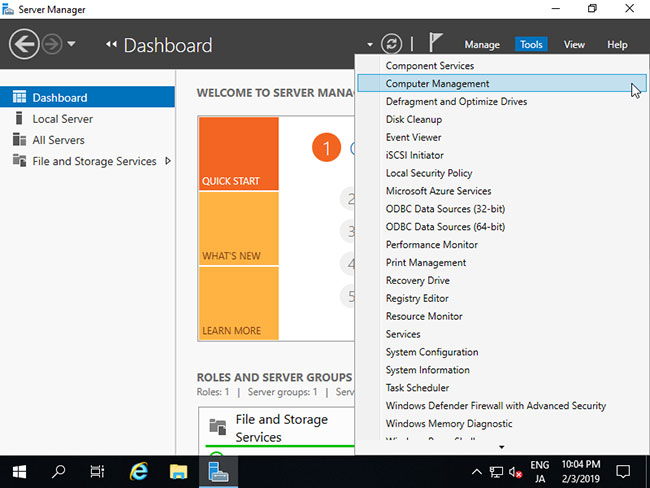
<p style="text-align: justify;">2. Chạy&nbsp;<strong>Server Manager</strong>&nbsp;và mở&nbsp;<strong>Tools &gt; Computer Management</strong>.</p>

<figure>
<div style="text-align: justify;">
<div style="text-align:center"><img alt="Mở Tools &gt; Computer Management" data-i="0" data-src="https://st.quantrimang.com/photos/image/2021/03/19/thiet-lap-ban-dau-windows-server-2019-1.jpg" data-was-processed="true" height="638" src="https://st.quantrimang.com/photos/image/2021/03/19/thiet-lap-ban-dau-windows-server-2019-1.jpg" width="850" /></div>
</div>

<figcaption>
<div style="text-align: justify;">Mở Tools &gt; Computer Management</div>
</figcaption>
</figure>

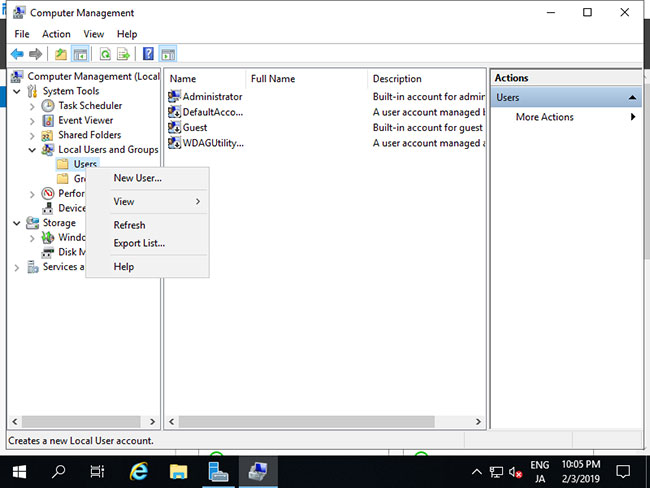
<p style="text-align: justify;">3. Nhấp chuột phải vào&nbsp;<strong>Users</strong>&nbsp;bên dưới&nbsp;<strong>Local Users and Groups</strong>&nbsp;ở bên trái và chọn&nbsp;<strong>New User.</strong></p>

<figure>
<div style="text-align: justify;">
<div style="text-align:center"><img alt="Chọn New User" data-i="1" data-src="https://st.quantrimang.com/photos/image/2021/03/19/thiet-lap-ban-dau-windows-server-2019-2.jpg" data-was-processed="true" height="638" src="https://st.quantrimang.com/photos/image/2021/03/19/thiet-lap-ban-dau-windows-server-2019-2.jpg" width="850" /></div>
</div>

<figcaption>
<div style="text-align: justify;">Chọn New User</div>
</figcaption>
</figure>

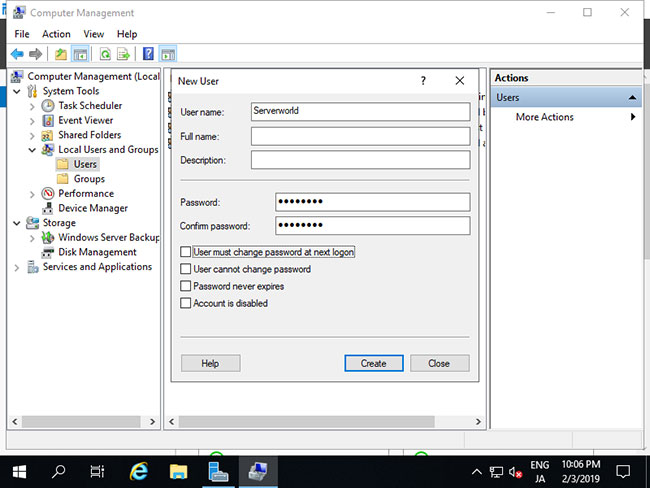
<p style="text-align: justify;">4. Nhập&nbsp;<strong>Username</strong>&nbsp;và&nbsp;<strong>Password</strong>&nbsp;cho người dùng mới, rồi nhấp vào nút&nbsp;<strong>Create</strong>. Các mục khác là tùy chọn để thiết lập.</p>

<figure>
<div style="text-align: justify;">
<div style="text-align:center"><img alt="Nhập Username và Password cho người dùng mới" data-i="2" data-src="https://st.quantrimang.com/photos/image/2021/03/19/thiet-lap-ban-dau-windows-server-2019-3.jpg" data-was-processed="true" height="638" src="https://st.quantrimang.com/photos/image/2021/03/19/thiet-lap-ban-dau-windows-server-2019-3.jpg" width="850" /></div>
</div>

<figcaption>
<div style="text-align: justify;">Nhập Username và Password cho người dùng mới</div>
</figcaption>
</figure>

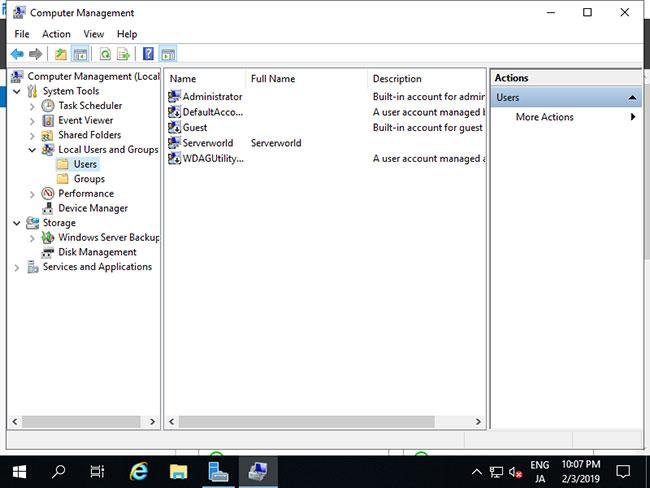
<p style="text-align: justify;">5. Sau khi tạo, người dùng mới được hiển thị trên danh sách như sau.</p>

<figure>
<div style="text-align: justify;">
<div style="text-align:center"><img alt="Người dùng mới được hiển thị trên danh sách" data-i="3" data-src="https://st.quantrimang.com/photos/image/2021/03/19/thiet-lap-ban-dau-windows-server-2019-4.jpg" data-was-processed="true" height="638" src="https://st.quantrimang.com/photos/image/2021/03/19/thiet-lap-ban-dau-windows-server-2019-4.jpg" width="850" /></div>
</div>

<figcaption>
<div style="text-align: justify;">Người dùng mới được hiển thị trên danh sách</div>
</figcaption>
</figure>

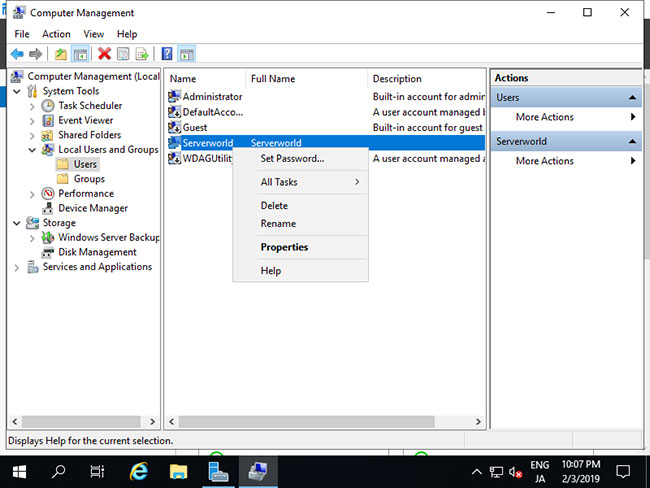
<p style="text-align: justify;">6. Nếu bạn muốn đặt quyền admin cho người dùng mới, hãy nhấp chuột phải vào người dùng và mở&nbsp;<strong>Properties</strong>.</p>

<figure>
<div style="text-align: justify;">
<div style="text-align:center"><img alt="Mở Properties" data-i="4" data-src="https://st.quantrimang.com/photos/image/2021/03/19/thiet-lap-ban-dau-windows-server-2019-5.jpg" data-was-processed="true" height="638" src="https://st.quantrimang.com/photos/image/2021/03/19/thiet-lap-ban-dau-windows-server-2019-5.jpg" width="850" /></div>
</div>

<figcaption>
<div style="text-align: justify;">Mở Properties</div>
</figcaption>
</figure>

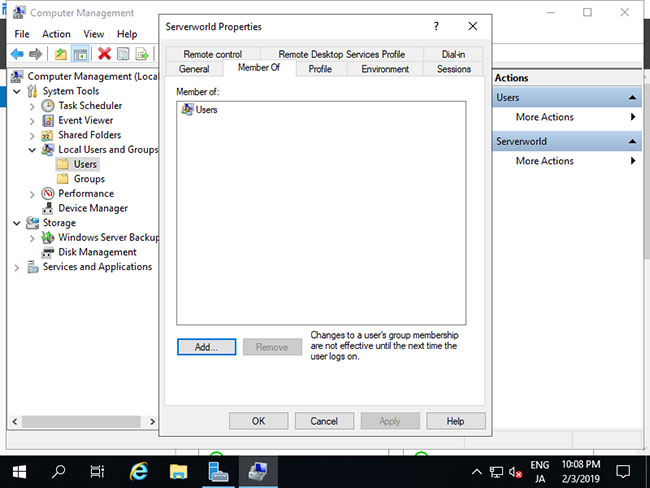
<p style="text-align: justify;">7. Di chuyển đến tab&nbsp;<strong>Member of</strong>&nbsp;và nhấp vào nút&nbsp;<strong>Add.</strong></p>

<figure>
<div style="text-align: justify;">
<div style="text-align:center"><img alt="Nhấp vào nút Add" data-i="5" data-src="https://st.quantrimang.com/photos/image/2021/03/19/thiet-lap-ban-dau-windows-server-2019-6.jpg" data-was-processed="true" height="638" src="https://st.quantrimang.com/photos/image/2021/03/19/thiet-lap-ban-dau-windows-server-2019-6.jpg" width="850" /></div>
</div>

<figcaption>
<div style="text-align: justify;">Nhấp vào nút Add</div>
</figcaption>
</figure>

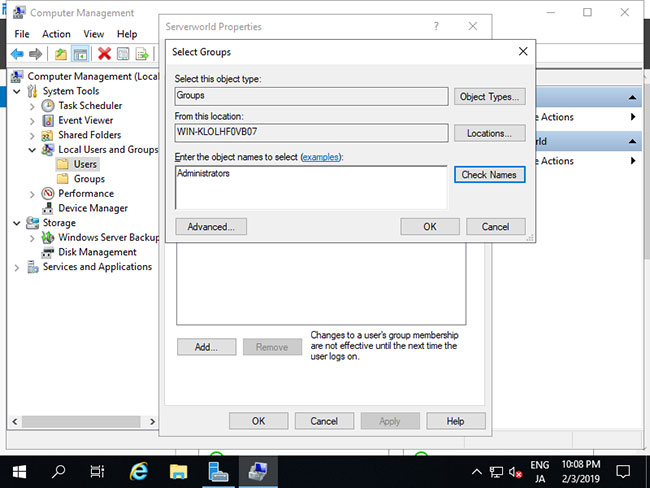
<p style="text-align: justify;">8. Chỉ định nhóm&nbsp;<strong>Administrators</strong>&nbsp;như sau.</p>

<figure>
<div style="text-align: justify;">
<div style="text-align:center"><img alt="Chỉ định nhóm Administrators" data-i="6" data-src="https://st.quantrimang.com/photos/image/2021/03/19/thiet-lap-ban-dau-windows-server-2019-7.jpg" data-was-processed="true" height="638" src="https://st.quantrimang.com/photos/image/2021/03/19/thiet-lap-ban-dau-windows-server-2019-7.jpg" width="850" /></div>
</div>

<figcaption>
<div style="text-align: justify;">Chỉ định nhóm Administrators</div>
</figcaption>
</figure>

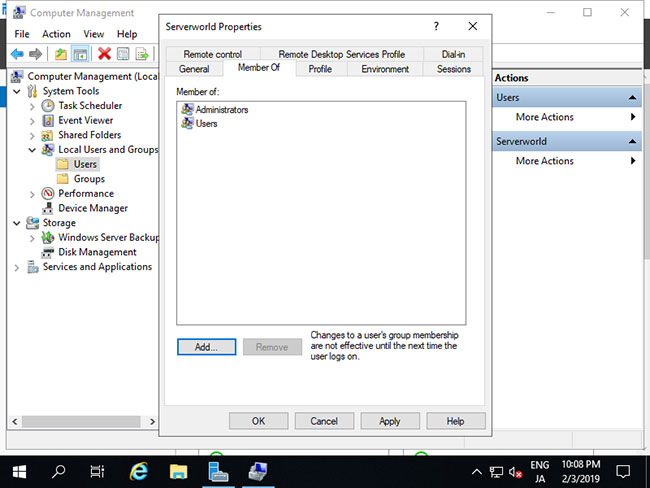
<p style="text-align: justify;">9. Đảm bảo rằng nhóm&nbsp;<strong>Administrators</strong>&nbsp;được thêm vào danh sách và nhấp vào nút&nbsp;<strong>OK</strong>&nbsp;để hoàn tất cài đặt.</p>

<figure>
<div style="text-align: justify;">
<div style="text-align:center"><img alt="Nhấp vào nút OK để hoàn tất cài đặt" data-i="7" data-src="https://st.quantrimang.com/photos/image/2021/03/19/thiet-lap-ban-dau-windows-server-2019-8.jpg" data-was-processed="true" height="638" src="https://st.quantrimang.com/photos/image/2021/03/19/thiet-lap-ban-dau-windows-server-2019-8.jpg" width="850" /></div>
</div>

<figcaption>
<div style="text-align: justify;">Nhấp vào nút OK để hoàn tất cài đặt</div>
</figcaption>
</figure>

<h2 style="text-align: justify;">Thay đổi username admin</h2>

<p style="text-align: justify;">Nếu muốn thay đổi tên tài khoản admin vì một số lý do như bảo mật, bạn có thể thay đổi như sau.</p>

<p style="text-align: justify;">1. Chạy PowerShell với quyền admin và cấu hình như sau:</p>

<pre id="pre1">
<code>Windows PowerShell
Copyright (C) Microsoft Corporation. All rights reserved.

# for example, change the name &#91;Administrator&#93; to &#91;ServerworldAdmin&#93;
PS C:\Users\Administrator&gt; Rename-LocalUser -Name &quot;Administrator&quot; -NewName &quot;ServerworldAdmin&quot; 

PS C:\Users\Administrator&gt; Get-LocalUser 

# changed
Name               Enabled Description
----               ------- -----------
DefaultAccount     False   A user account managed by the system.
Guest              False   Built-in account for guest access to the computer/domain
Serverworld        True    Administrator of this Computer
ServerworldAdmin   True    Built-in account for administering the computer/domain
sshd               True
WDAGUtilityAccount False   A user account managed and used by the system for Windows Defender Application Guard scen...</code></pre>

<p style="text-align: justify;">2. Chạy&nbsp;<strong>Server Manager</strong>&nbsp;và mở&nbsp;<strong>Tools &gt; Computer Management</strong>.</p>

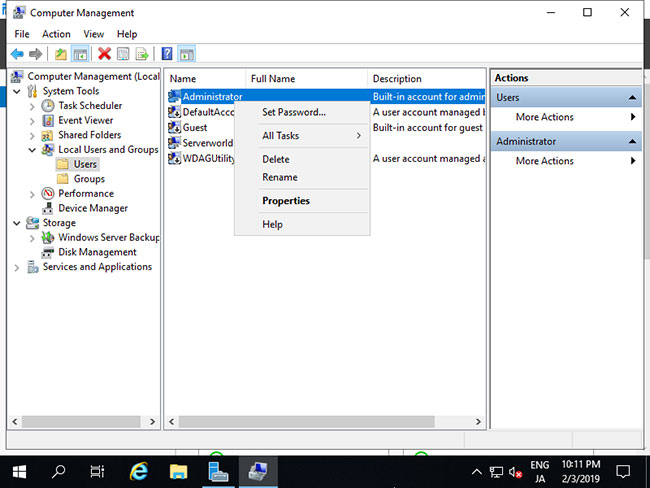
<p style="text-align: justify;">3. Mở&nbsp;<strong>Local Users and Groups &gt; Users</strong>&nbsp;ở bên trái và nhấp chuột phải vào&nbsp;<strong>Administrator</strong>, rồi chọn&nbsp;<strong>Rename</strong>&nbsp;ở bên phải. Sau đó, thay đổi bất kỳ tên nào bạn thích.</p>

<figure>
<div style="text-align: justify;">
<div style="text-align:center"><img alt="Nhấp chuột phải vào Administrator, rồi chọn Rename ở bên phải" data-i="8" data-src="https://st.quantrimang.com/photos/image/2021/03/19/thiet-lap-ban-dau-windows-server-2019-9.jpg" data-was-processed="true" height="638" src="https://st.quantrimang.com/photos/image/2021/03/19/thiet-lap-ban-dau-windows-server-2019-9.jpg" width="850" /></div>
</div>

<figcaption>
<div style="text-align: justify;">Nhấp chuột phải vào Administrator, rồi chọn Rename ở bên phải</div>
</figcaption>
</figure>

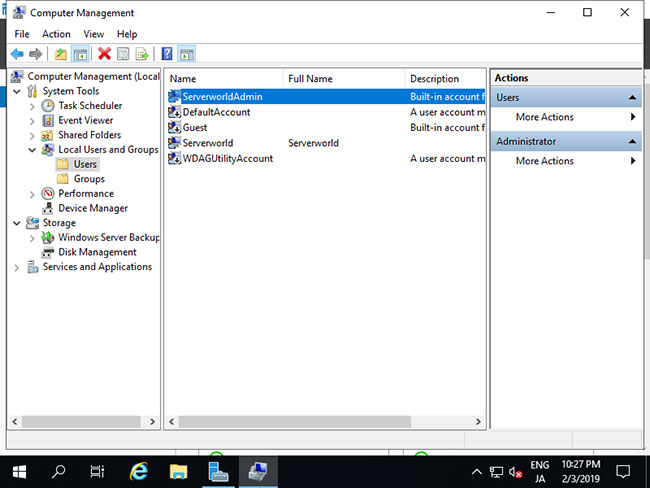
<p style="text-align: justify;">4. Tên Admin vừa được thay đổi.</p>

<figure>
<div style="text-align: justify;"><img alt="Tên Admin được thay đổi" data-i="9" data-src="https://st.quantrimang.com/photos/image/2021/03/19/thiet-lap-ban-dau-windows-server-2019-10.jpg" data-was-processed="true" height="638" src="https://st.quantrimang.com/photos/image/2021/03/19/thiet-lap-ban-dau-windows-server-2019-10.jpg" width="850" /></div>

<figcaption>
<div style="text-align: justify;">Tên Admin được thay đổi</div>
</figcaption>
</figure>

<h2 style="text-align: justify;">Thay đổi tên máy tính</h2>

<p style="text-align: justify;">Tên máy tính được gán tự động theo mặc định, vì vậy hãy thay đổi nó.</p>

<p style="text-align: justify;">1. Chạy PowerShell với quyền admin và cấu hình như sau:</p>

<pre id="pre2">
<code>Windows PowerShell
Copyright (C) Microsoft Corporation. All rights reserved.

# for example, change Computer Name to &#91;RX-7&#93;
PS C:\Users\Administrator&gt; Rename-Computer -NewName RX-7 -Force -PassThru 

HasSucceeded OldComputerName           NewComputerName
------------ ---------------           ---------------
True         RX-7                      RX-9
WARNING: The changes will take effect after you restart the computer RX-7.

# for example, change Primary DNS Suffix to &#91;srv.world&#93;
PS C:\Users\Administrator&gt; Set-ItemProperty &quot;HKLM:\SYSTEM\CurrentControlSet\Services\Tcpip\Parameters\&quot; –Name &quot;NV Domain&quot; –Value &quot;srv.world&quot; -PassThru 

NV Domain    : srv.world
PSPath       : Microsoft.PowerShell.Core\Registry::HKEY_LOCAL_MACHINE\SYSTEM\CurrentControlSet\Services\Tcpip\Parameters\
PSParentPath : Microsoft.PowerShell.Core\Registry::HKEY_LOCAL_MACHINE\SYSTEM\CurrentControlSet\Services\Tcpip
PSChildName  : Parameters
PSDrive      : HKLM
PSProvider   : Microsoft.PowerShell.Core\Registry

# restart Computer to apply changes
PS C:\Users\Administrator&gt; Restart-Computer -Force 

# verify
PS C:\Users\Administrator&gt; (ipconfig /all)&#91;0..9&#93; 

Windows IP Configuration

   Host Name . . . . . . . . . . . . : RX-7
   Primary Dns Suffix  . . . . . . . : srv.world
   Node Type . . . . . . . . . . . . : Hybrid
   IP Routing Enabled. . . . . . . . : No
   WINS Proxy Enabled. . . . . . . . : No
   DNS Suffix Search List. . . . . . : srv.world</code></pre>

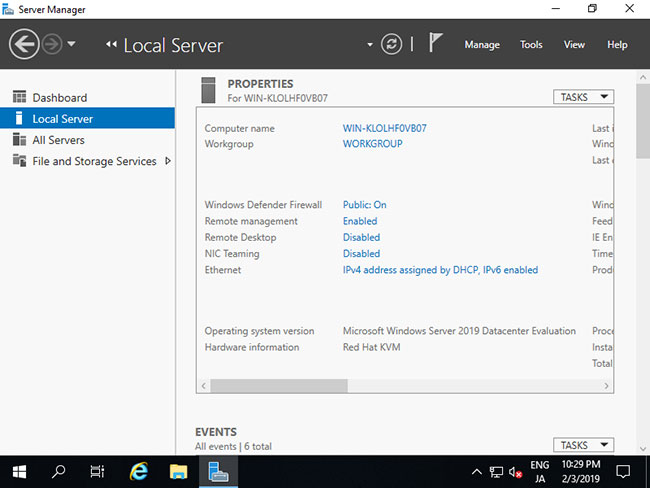
<p style="text-align: justify;">2. Chạy&nbsp;<strong>Server Manager</strong>&nbsp;và chọn&nbsp;<strong>Local Server</strong>&nbsp;ở bên trái, rồi kích vào phần&nbsp;<strong>Computer Name</strong>&nbsp;ở bên phải.</p>

<figure>
<div style="text-align: justify;">
<div style="text-align:center"><img alt="Kích vào phần Computer Name ở bên phải" data-i="10" data-src="https://st.quantrimang.com/photos/image/2021/03/19/thiet-lap-ban-dau-windows-server-2019-11.jpg" data-was-processed="true" height="638" src="https://st.quantrimang.com/photos/image/2021/03/19/thiet-lap-ban-dau-windows-server-2019-11.jpg" width="850" /></div>
</div>

<figcaption>
<div style="text-align: justify;">Kích vào phần Computer Name ở bên phải</div>
</figcaption>
</figure>

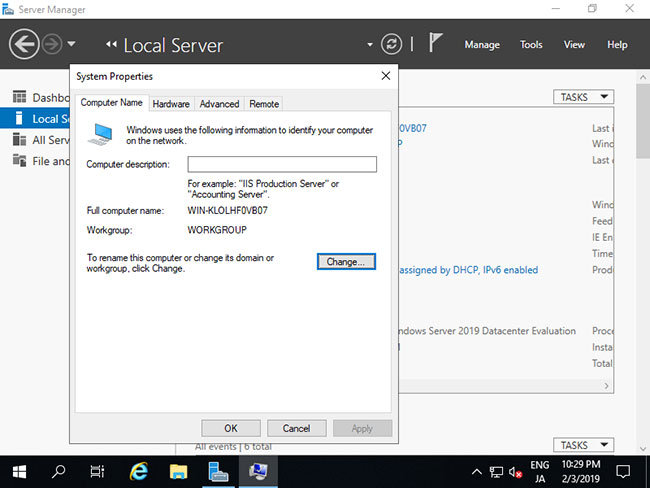
<p style="text-align: justify;">3. Di chuyển đến tab&nbsp;<strong>Computer Name</strong>&nbsp;và kích vào nút&nbsp;<strong>Change</strong>.</p>

<figure>
<div style="text-align: justify;">
<div style="text-align:center"><img alt="Di chuyển đến tab Computer Name" data-i="11" data-src="https://st.quantrimang.com/photos/image/2021/03/19/thiet-lap-ban-dau-windows-server-2019-12.jpg" data-was-processed="true" height="638" src="https://st.quantrimang.com/photos/image/2021/03/19/thiet-lap-ban-dau-windows-server-2019-12.jpg" width="850" /></div>
</div>

<figcaption>
<div style="text-align: justify;">Di chuyển đến tab Computer Name</div>
</figcaption>
</figure>

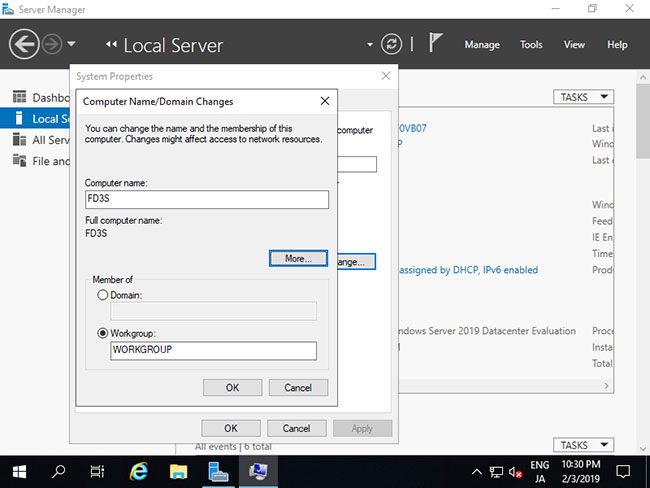
<p style="text-align: justify;">4. Nhập bất kỳ tên máy tính nào bạn thích vào trường&nbsp;<strong>Computer Name</strong>&nbsp;và nhấp vào nút&nbsp;<strong>More...</strong></p>

<figure>
<div style="text-align: justify;">
<div style="text-align:center"><img alt="Nhập bất kỳ tên máy tính nào bạn thích vào trường Computer Name" data-i="12" data-src="https://st.quantrimang.com/photos/image/2021/03/19/thiet-lap-ban-dau-windows-server-2019-13.jpg" data-was-processed="true" height="638" src="https://st.quantrimang.com/photos/image/2021/03/19/thiet-lap-ban-dau-windows-server-2019-13.jpg" width="850" /></div>
</div>

<figcaption>
<div style="text-align: justify;">Nhập bất kỳ tên máy tính nào bạn thích vào trường Computer Name</div>
</figcaption>
</figure>

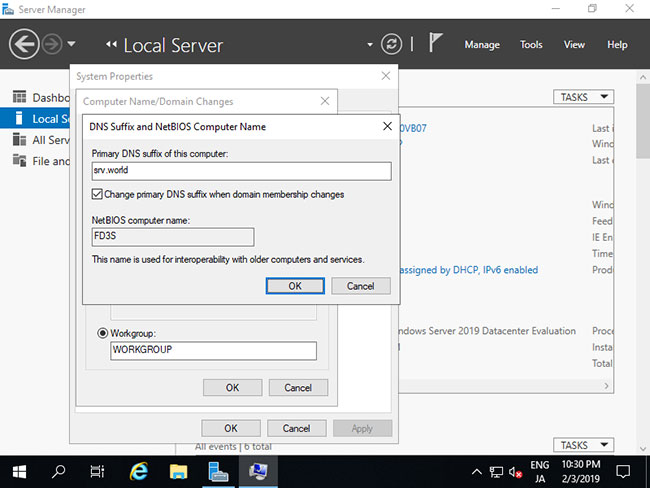
<p style="text-align: justify;">5. Nhập tên domain mà máy tính này đang thuộc về.</p>

<figure>
<div style="text-align: justify;"><img alt="Nhập tên domain" data-i="13" data-src="https://st.quantrimang.com/photos/image/2021/03/19/thiet-lap-ban-dau-windows-server-2019-14.jpg" data-was-processed="true" height="638" src="https://st.quantrimang.com/photos/image/2021/03/19/thiet-lap-ban-dau-windows-server-2019-14.jpg" width="850" /></div>

<figcaption>
<div style="text-align: justify;">Nhập tên domain</div>
</figcaption>
</figure>

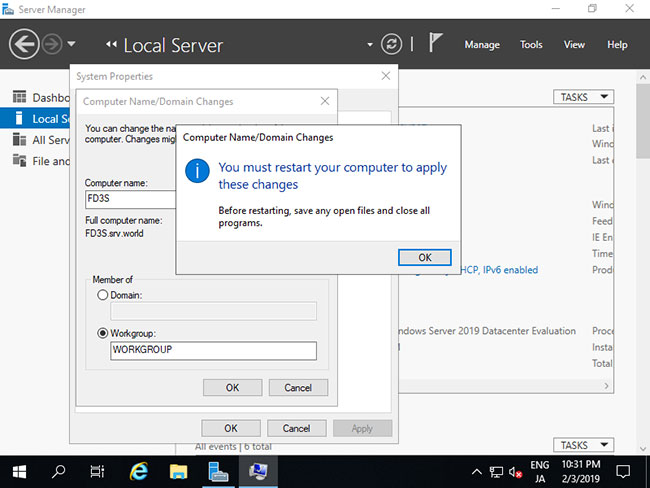
<p style="text-align: justify;">6. Việc khởi động lại máy tính là bắt buộc để áp dụng các thay đổi.</p>

<figure>
<div style="text-align: justify;">
<div style="text-align:center"><img alt="Khởi động lại máy tính" data-i="14" data-src="https://st.quantrimang.com/photos/image/2021/03/19/thiet-lap-ban-dau-windows-server-2019-15.jpg" data-was-processed="true" height="638" src="https://st.quantrimang.com/photos/image/2021/03/19/thiet-lap-ban-dau-windows-server-2019-15.jpg" width="850" /></div>
</div>

<figcaption>
<div style="text-align: justify;">Khởi động lại máy tính</div>
</figcaption>
</figure>

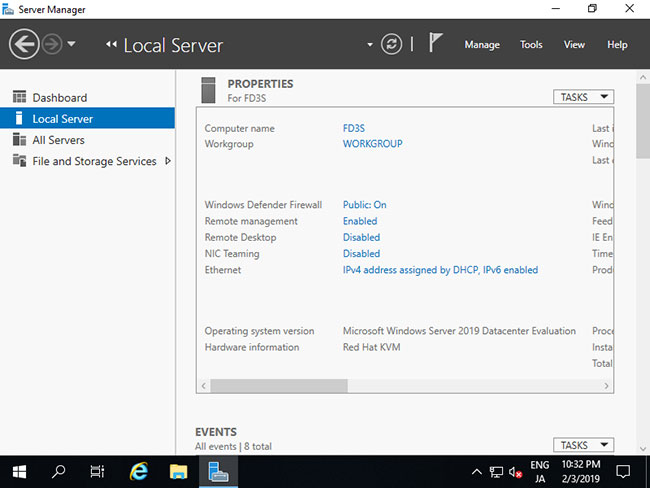
<p style="text-align: justify;">7. Tên máy tính được thay đổi bình thường.</p>

<figure>
<div style="text-align: justify;">
<div style="text-align:center"><img alt="Tên máy tính được thay đổi" data-i="15" data-src="https://st.quantrimang.com/photos/image/2021/03/19/thiet-lap-ban-dau-windows-server-2019-16.jpg" data-was-processed="true" height="638" src="https://st.quantrimang.com/photos/image/2021/03/19/thiet-lap-ban-dau-windows-server-2019-16.jpg" width="850" /></div>
</div>

<figcaption>
<div style="text-align: justify;">Tên máy tính được thay đổi</div>
</figcaption>
</figure>

<h2 style="text-align: justify;">Đặt địa chỉ IP tĩnh</h2>

<p style="text-align: justify;">Địa chỉ IP được DHCP gán theo mặc định, vì vậy hãy đặt&nbsp;địa chỉ IP tĩnh&nbsp;cho việc sử dụng Server. Ví dụ này cho thấy cách đặt địa chỉ IPv4. Trên cấu hình CUI, hãy thiết lập như sau.</p>

<p style="text-align: justify;">1. Chạy PowerShell với quyền admin và cấu hình như sau:</p>

<pre id="pre3">
<code>Windows PowerShell
Copyright (C) Microsoft Corporation. All rights reserved.

# make sure network interfaces
PS C:\Users\Administrator&gt; Get-NetIPInterface -AddressFamily IPv4 

ifIndex InterfaceAlias                  AddressFamily NlMtu(Bytes) InterfaceMetric Dhcp     ConnectionState PolicyStore
------- --------------                  ------------- ------------ --------------- ----     --------------- -----------
6       Ethernet                        IPv4                  1500              15 Enabled  Connected       ActiveStore
1       Loopback Pseudo-Interface 1     IPv4            4294967295              75 Disabled Connected       ActiveStore

# set DHCP off (replace InterfaceIndex number to your own environment (ifIndex above))
PS C:\Users\Administrator&gt; Set-NetIPInterface -InterfaceIndex 6 -Dhcp Disabled 

# for example, set IP address &#91;10.0.0.101/24&#93;, gateway &#91;10.0.0.1&#93;
PS C:\Users\Administrator&gt; New-NetIPAddress -InterfaceIndex 6 -AddressFamily IPv4 -IPAddress &quot;10.0.0.101&quot; -PrefixLength 24 -DefaultGateway &quot;10.0.0.1&quot; 

IPAddress         : 10.0.0.101
InterfaceIndex    : 6
InterfaceAlias    : Ethernet
AddressFamily     : IPv4
Type              : Unicast
PrefixLength      : 24
PrefixOrigin      : Manual
SuffixOrigin      : Manual
AddressState      : Tentative
ValidLifetime     : Infinite (&#91;TimeSpan&#93;::MaxValue)
PreferredLifetime : Infinite (&#91;TimeSpan&#93;::MaxValue)
SkipAsSource      : False
PolicyStore       : ActiveStore

# for example, set DNS &#91;10.0.0.10&#93;
PS C:\Users\Administrator&gt; Set-DnsClientServerAddress -InterfaceIndex 6 -ServerAddresses &quot;10.0.0.10&quot; -PassThru 

InterfaceAlias               Interface Address ServerAddresses
                             Index     Family
--------------               --------- ------- ---------------
Ethernet                             6 IPv4    {10.0.0.10}
Ethernet                             6 IPv6    {}

# confirm settings
PS C:\Users\Administrator&gt; ipconfig /all 

Windows IP Configuration

   Host Name . . . . . . . . . . . . : RX-7
   Primary Dns Suffix  . . . . . . . : srv.world
   Node Type . . . . . . . . . . . . : Hybrid
   IP Routing Enabled. . . . . . . . : No
   WINS Proxy Enabled. . . . . . . . : No
   DNS Suffix Search List. . . . . . : srv.world

Ethernet adapter Ethernet:

   Connection-specific DNS Suffix  . :
   Description . . . . . . . . . . . : Red Hat VirtIO Ethernet Adapter
   Physical Address. . . . . . . . . : 52-54-00-07-22-41
   DHCP Enabled. . . . . . . . . . . : No
   Autoconfiguration Enabled . . . . : Yes
   Link-local IPv6 Address . . . . . : fe80::b547:c48c:6151:2fcf%6(Preferred)
   IPv4 Address. . . . . . . . . . . : 10.0.0.101(Preferred)
   Subnet Mask . . . . . . . . . . . : 255.255.255.0
   Default Gateway . . . . . . . . . : 10.0.0.1
   DNS Servers . . . . . . . . . . . : 10.0.0.10
   NetBIOS over Tcpip. . . . . . . . : Enabled</code></pre>

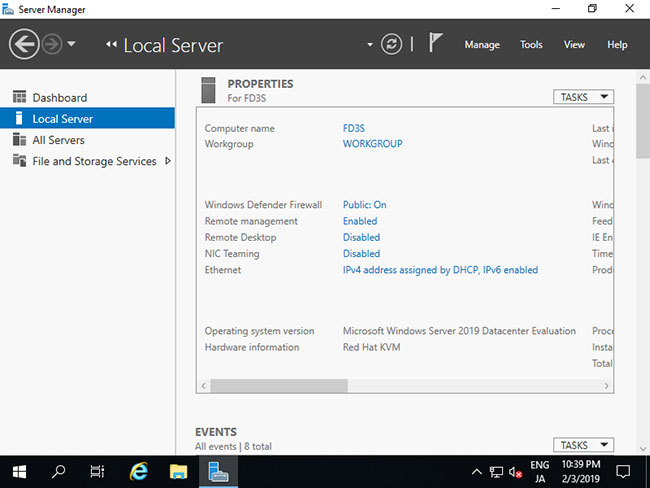
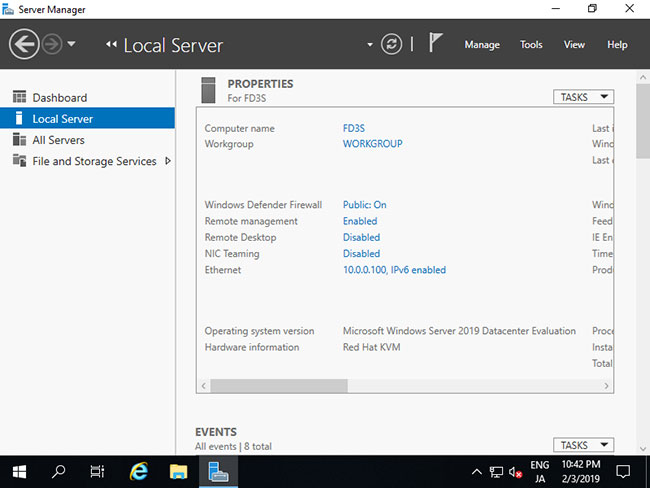
<p style="text-align: justify;">2. Chạy&nbsp;<strong>Server Manager</strong>&nbsp;và chọn&nbsp;<strong>Local Server</strong>&nbsp;trên bảng điều khiển bên trái, rồi nhấp vào phần&nbsp;<strong>Ethernet</strong>&nbsp;trên bảng điều khiển bên phải.</p>

<figure>
<div style="text-align: justify;">
<div style="text-align:center"><img alt="Nhấp vào phần Ethernet trên bảng điều khiển bên phải" data-i="16" data-src="https://st.quantrimang.com/photos/image/2021/04/26/thiet-lap-ban-dau-windows-server-2019-1.jpg" data-was-processed="true" height="638" src="https://st.quantrimang.com/photos/image/2021/04/26/thiet-lap-ban-dau-windows-server-2019-1.jpg" width="850" /></div>
</div>

<figcaption>
<div style="text-align: justify;">Nhấp vào phần Ethernet trên bảng điều khiển bên phải</div>
</figcaption>
</figure>

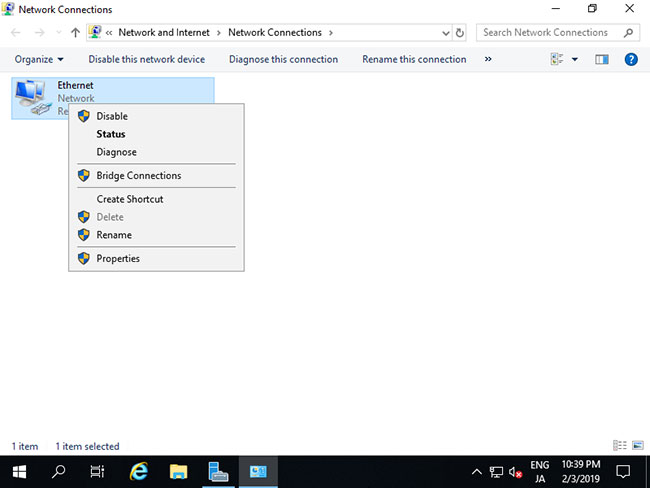
<p style="text-align: justify;">3. Nhấp chuột phải vào biểu tượng&nbsp;<strong>Ethernet</strong>&nbsp;và mở&nbsp;<strong>Properties</strong>.</p>

<figure>
<div style="text-align: justify;">
<div style="text-align:center"><img alt="Nhấp chuột phải vào biểu tượng Ethernet và mở Properties" data-i="17" data-src="https://st.quantrimang.com/photos/image/2021/04/26/thiet-lap-ban-dau-windows-server-2019-2.jpg" data-was-processed="true" height="638" src="https://st.quantrimang.com/photos/image/2021/04/26/thiet-lap-ban-dau-windows-server-2019-2.jpg" width="850" /></div>
</div>

<figcaption>
<div style="text-align: justify;">Nhấp chuột phải vào biểu tượng Ethernet và mở Properties</div>
</figcaption>
</figure>

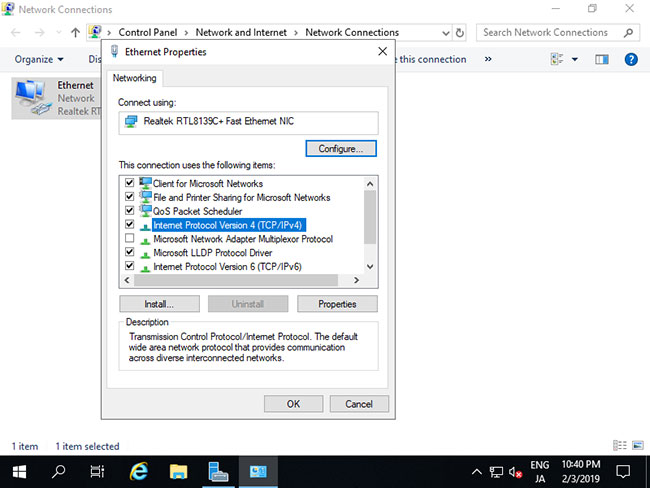
<p style="text-align: justify;">4. Chọn&nbsp;<strong>Internet Protocol Version 4</strong>&nbsp;và nhấp vào nút&nbsp;<strong>Properties</strong>.</p>

<figure>
<div style="text-align: justify;">
<div style="text-align:center"><img alt="Chọn Internet Protocol Version 4 và nhấp vào nút Properties" data-i="18" data-src="https://st.quantrimang.com/photos/image/2021/04/26/thiet-lap-ban-dau-windows-server-2019-3.jpg" data-was-processed="true" height="638" src="https://st.quantrimang.com/photos/image/2021/04/26/thiet-lap-ban-dau-windows-server-2019-3.jpg" width="850" /></div>
</div>

<figcaption>
<div style="text-align: justify;">Chọn Internet Protocol Version 4 và nhấp vào nút Properties</div>
</figcaption>
</figure>

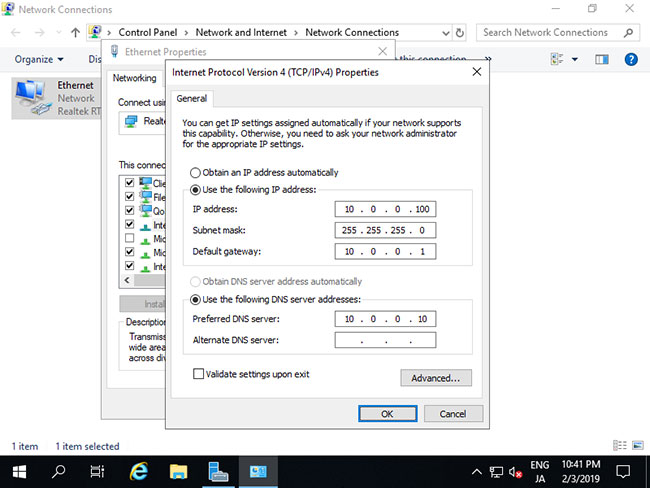
<p style="text-align: justify;">5. Đặt địa chỉ IP tĩnh, gateway và các địa chỉ khác cho mạng cục bộ của bạn.</p>

<figure>
<div style="text-align: justify;">
<div style="text-align:center"><img alt="Đặt địa chỉ IP tĩnh, gateway và các địa chỉ khác cho mạng cục bộ" data-i="19" data-src="https://st.quantrimang.com/photos/image/2021/04/26/thiet-lap-ban-dau-windows-server-2019-4.jpg" data-was-processed="true" height="638" src="https://st.quantrimang.com/photos/image/2021/04/26/thiet-lap-ban-dau-windows-server-2019-4.jpg" width="850" /></div>
</div>

<figcaption>
<div style="text-align: justify;">Đặt địa chỉ IP tĩnh, gateway và các địa chỉ khác cho mạng cục bộ</div>
</figcaption>
</figure>

<p style="text-align: justify;">6. Sau khi đặt địa chỉ IP tĩnh, các thay đổi sẽ được kích hoạt trên&nbsp;<strong>Server Manager</strong>.</p>

<figure>
<div style="text-align: justify;"><img alt="Các thay đổi sẽ được kích hoạt trên Server Manager" data-i="20" data-src="https://st.quantrimang.com/photos/image/2021/04/26/thiet-lap-ban-dau-windows-server-2019-5.jpg" data-was-processed="true" height="638" src="https://st.quantrimang.com/photos/image/2021/04/26/thiet-lap-ban-dau-windows-server-2019-5.jpg" style="float:left" width="850" /></div>

<figcaption>
<div style="text-align: justify;">Các thay đổi sẽ được kích hoạt trên Server Manager</div>
</figcaption>
</figure>

<h1 style="text-align: justify;">SỬA CHỮA MÁY TÍNH TẠI NHÀ Ở&nbsp;HÓC MÔN</h1>

<div style="text-align: justify;">SỬA CHỮA MÁY TÍNH TẠI NHÀ Ở HỒ CHÍ MINH</div>

<p style="text-align: justify;">Với dịch vụ sửa máy tính tại nhà ở Hóc Môn và dịch vụ sửa máy tính tại nhà ở TP.HCM, Công ty Phát Thành Đạt&nbsp;sẽ luôn đem lại sự hài lòng nhất tới cho bạn, dịch vụ sửa chữa máy tính tại nhà luôn đồng hành cùng bạn từ (8h tới 17h trong ngày). Bảo trì định kỳ mỗi tháng (vệ sinh máy tính, update virus, tối ưu hệ thống...). Liên hệ Hotline 0908.554.558 - Info@phatthanhdat.com</p>

<p style="text-align: justify;">Chúc bạn thực hiện thành công!</p>

<blockquote>
<p style="text-align: justify;">Xem thêm<br />
1. <a href="https://phatthanhdat.com/quan-tri-mang/windows-server-2019-69.html">Tải và cài đặt Windows Server 2019</a><br />
2.&nbsp;<a href="https://phatthanhdat.com/quan-tri-mang/cach-cai-dat-vpn-tren-windows-server-2019-71.html" title="Cách cài đặt VPN trên Windows Server 2019">Cách cài đặt VPN trên Windows Server 2019</a></p>
</blockquote>
		</div>
	</div>
	<div id="footer" class="clearfix">
		<div id="url">
			<strong>URL của bản tin này: </strong><a href="https://phatthanhdat.com/index.php/savefile/quan-tri-mang/cach-thiet-lap-ban-dau-windows-server-2019-72.html" title="Cách thiết lập ban đầu Windows Server 2019">https://phatthanhdat.com/index.php/savefile/quan-tri-mang/cach-thiet-lap-ban-dau-windows-server-2019-72.html</a>

		</div>
		<div class="clear"></div>
		<div class="copyright">
			&copy; Phát Thành Đạt - Dịch vụ sửa chữa máy tính hóc môn
		</div>
		<div id="contact">
			<a href="mailto:info@phatthanhdat.com">info@phatthanhdat.com</a>
		</div>
	</div>
</div>
        <div id="timeoutsess" class="chromeframe">
            Bạn đã không sử dụng Site, <a onclick="timeoutsesscancel();" href="https://phatthanhdat.com/#">Bấm vào đây để duy trì trạng thái đăng nhập</a>. Thời gian chờ: <span id="secField"> 60 </span> giây
        </div>
        <div id="openidResult" class="nv-alert" style="display:none"></div>
        <div id="openidBt" data-result="" data-redirect=""></div>
<script src="https://phatthanhdat.com/assets/js/jquery/jquery.min.js"></script>
<script>var nv_base_siteurl="/",nv_lang_data="vi",nv_lang_interface="vi",nv_name_variable="nv",nv_fc_variable="op",nv_lang_variable="language",nv_module_name="news",nv_func_name="savefile",nv_is_user=0, nv_my_ofs=-4,nv_my_abbr="EDT",nv_cookie_prefix="nv4",nv_check_pass_mstime=1738000,nv_area_admin=0,nv_safemode=0,theme_responsive=0,nv_recaptcha_ver=2,nv_recaptcha_sitekey="",nv_recaptcha_type="image",XSSsanitize=1;</script>
<script src="https://phatthanhdat.com/assets/js/language/vi.js"></script>
<script src="https://phatthanhdat.com/assets/js/DOMPurify/purify3.js"></script>
<script src="https://phatthanhdat.com/assets/js/global.js"></script>
<script src="https://phatthanhdat.com/assets/js/site.js"></script>
<script src="https://phatthanhdat.com/themes/default/js/news.js"></script>
<script src="https://phatthanhdat.com/themes/default/js/main.js"></script>
<script src="https://phatthanhdat.com/themes/default/js/custom.js"></script>
<script type="application/ld+json">
        {
            "@context": "https://schema.org",
            "@type": "Organization",
            "url": "https://phatthanhdat.com",
            "logo": "https://phatthanhdat.com/uploads/about/logonho.png"
        }
        </script>
<script async custom-element="amp-ad" src="https://cdn.ampproject.org/v0/amp-ad-0.1.js"></script>
<script>
     (adsbygoogle = window.adsbygoogle || []).push({});
</script>
<script>(function(w,d,s,l,i){w[l]=w[l]||[];w[l].push({'gtm.start':
new Date().getTime(),event:'gtm.js'});var f=d.getElementsByTagName(s)[0],
j=d.createElement(s),dl=l!='dataLayer'?'&l='+l:'';j.async=true;j.src=
'https://www.googletagmanager.com/gtm.js?id='+i+dl;f.parentNode.insertBefore(j,f);
})(window,document,'script','dataLayer','GTM-KRZZ2CK');</script>
<script>
!function(f,b,e,v,n,t,s)
{if(f.fbq)return;n=f.fbq=function(){n.callMethod?
n.callMethod.apply(n,arguments):n.queue.push(arguments)};
if(!f._fbq)f._fbq=n;n.push=n;n.loaded=!0;n.version='2.0';
n.queue=[];t=b.createElement(e);t.async=!0;
t.src=v;s=b.getElementsByTagName(e)[0];
s.parentNode.insertBefore(t,s)}(window, document,'script',
'https://connect.facebook.net/en_US/fbevents.js');
fbq('init', '219812430112623');
fbq('track', 'PageView');
</script>
<script async src="https://pagead2.googlesyndication.com/pagead/js/adsbygoogle.js?client=ca-pub-3722185033130810" crossorigin="anonymous"></script>
<script>
      var chatbox = document.getElementById('fb-customer-chat');
      chatbox.setAttribute("page_id", "244380242794992");
      chatbox.setAttribute("attribution", "biz_inbox");

      window.fbAsyncInit = function() {
        FB.init({
          xfbml            : true,
          version          : 'v11.0'
        });
      };

      (function(d, s, id) {
        var js, fjs = d.getElementsByTagName(s)[0];
        if (d.getElementById(id)) return;
        js = d.createElement(s); js.id = id;
        js.src = 'https://connect.facebook.net/vi_VN/sdk/xfbml.customerchat.js';
        fjs.parentNode.insertBefore(js, fjs);
      }(document, 'script', 'facebook-jssdk'));
    </script>
<script src="https://sp.zalo.me/plugins/sdk.js"></script>
<script>
     (adsbygoogle = window.adsbygoogle || []).push({});
</script>
<script src="https://phatthanhdat.com/themes/default/js/bootstrap.min.js"></script>
</body>
</html>