<!DOCTYPE html>
    <html lang="vi" xmlns="http://www.w3.org/1999/xhtml" prefix="og: http://ogp.me/ns#">
    <head>
<title>Phát Thành Đạt Cách cài đặt và sử dụng IIS trên Windows Server 2019</title>
<meta name="description" content="Cách cài đặt và sử dụng IIS trên Windows Server 2019 - Savefile - Tin Tức -...">
<meta name="author" content="Phát Thành Đạt - Dịch vụ sửa chữa máy tính hóc môn">
<meta name="copyright" content="Phát Thành Đạt - Dịch vụ sửa chữa máy tính hóc môn [info@phatthanhdat.com]">
<meta name="generator" content="NukeViet v4.5">
<meta name="facebook-domain-verification" content="nv4brgbtr5jrhsej2o63m6qx7nz5ek">
<meta http-equiv="Content-Type" content="text/html; charset=utf-8">
<meta property="og:title" content="Cách cài đặt và sử dụng IIS trên Windows Server 2019">
<meta property="og:type" content="website">
<meta property="og:description" content="Savefile - Tin Tức - https&#x3A;&#x002F;&#x002F;phatthanhdat.com&#x002F;index.php&#x002F;savefile&#x002F;quan-tri-mang&#x002F;cach-cai-dat-va-su-dung-iis-tren-windows-server-2019-73.html">
<meta property="og:site_name" content="Phát Thành Đạt - Dịch vụ sửa chữa máy tính hóc môn">
<meta property="og:url" content="https://phatthanhdat.com/index.php/savefile/quan-tri-mang/cach-cai-dat-va-su-dung-iis-tren-windows-server-2019-73.html">
<link rel="shortcut icon" href="https://phatthanhdat.com/uploads/about/logonho.png">
<link rel="canonical" href="https://phatthanhdat.com/index.php/savefile/quan-tri-mang/cach-cai-dat-va-su-dung-iis-tren-windows-server-2019-73.html">
<link rel="alternate" href="https://phatthanhdat.com/index.php/rss/" title="Tin Tức" type="application/rss+xml">
<link rel="alternate" href="https://phatthanhdat.com/index.php/rss/quan-tri-mang/" title="Tin Tức - Quản Trị Mạng" type="application/rss+xml">
<link rel="alternate" href="https://phatthanhdat.com/index.php/rss/windows-server/" title="Tin Tức - Windows Server" type="application/rss+xml">
<link rel="alternate" href="https://phatthanhdat.com/index.php/rss/active-windows/" title="Tin Tức - Active Windows" type="application/rss+xml">
<link rel="alternate" href="https://phatthanhdat.com/index.php/rss/mang-may-tinh/" title="Tin Tức - Mạng Máy Tính" type="application/rss+xml">
<link rel="alternate" href="https://phatthanhdat.com/index.php/rss/quan-tri-mail-server/" title="Tin Tức - Quản Trị Mail Server" type="application/rss+xml">
<link rel="alternate" href="https://phatthanhdat.com/index.php/rss/y-nghia-cuoc-song/" title="Tin Tức - Ý nghĩa cuộc sống" type="application/rss+xml">
<link rel="alternate" href="https://phatthanhdat.com/index.php/rss/tien-ich/" title="Tin Tức - Tiện Ích" type="application/rss+xml">
<link rel="alternate" href="https://phatthanhdat.com/index.php/rss/facebook-add/" title="Tin Tức - Facebook Add" type="application/rss+xml">
<link rel="alternate" href="https://phatthanhdat.com/index.php/rss/nong-tren-mang/" title="Tin Tức - Nóng Trên Mạng" type="application/rss+xml">
<link rel="alternate" href="https://phatthanhdat.com/index.php/rss/covid-19/" title="Tin Tức - Covid 19" type="application/rss+xml">
<link rel="alternate" href="https://phatthanhdat.com/index.php/rss/hoc-duong/" title="Tin Tức - Học Đường" type="application/rss+xml">
<link rel="alternate" href="https://phatthanhdat.com/index.php/rss/tin-tuc-thi-truong/" title="Tin Tức - Tin Tức Thị Trường" type="application/rss+xml">
<link rel="alternate" href="https://phatthanhdat.com/index.php/rss/code-hay/" title="Tin Tức - Code hay" type="application/rss+xml">
<link rel="alternate" href="https://phatthanhdat.com/index.php/rss/kho-hang/" title="Tin Tức - Kho Hàng" type="application/rss+xml">
<link rel="alternate" href="https://phatthanhdat.com/index.php/rss/ai-tri-tue-nhan-tao/" title="Tin Tức - AI Trí Tuệ Nhân Tạo" type="application/rss+xml">
<link rel="alternate" href="https://phatthanhdat.com/index.php/rss/do-hoa/" title="Tin Tức - Đồ Hoạ" type="application/rss+xml">
<link rel="stylesheet" href="https://phatthanhdat.com/assets/css/font-awesome.min.css">
<link rel="stylesheet" href="https://phatthanhdat.com/themes/default/css/bootstrap.non-responsive.css">
<link rel="stylesheet" href="https://phatthanhdat.com/themes/default/css/style.css">
<link rel="stylesheet" href="https://phatthanhdat.com/themes/default/css/style.non-responsive.css">
<link rel="StyleSheet" href="https://phatthanhdat.com/themes/default/css/news.css">
<link rel="stylesheet" href="https://phatthanhdat.com/themes/default/css/custom.css">
<style type="text/css">
	body{background: #fff;}
</style>
<!-- Google Tag Manager -->
<!-- End Google Tag Manager -->

<!-- Facebook Pixel Code -->
<noscript><img height="1" width="1" style="display:none"
src="https://www.facebook.com/tr?id=219812430112623&ev=PageView&noscript=1"
/></noscript>
<!-- End Facebook Pixel Code -->
<!-- Messenger Plugin chat Code -->
    <div id="fb-root"></div>

    <!-- Your Plugin chat code -->
    <div id="fb-customer-chat" class="fb-customerchat">
    </div>
<script>(function(i,s,o,g,r,a,m){i['GoogleAnalyticsObject']=r;i[r]=i[r]||function(){
(i[r].q=i[r].q||[]).push(arguments)},i[r].l=1*new Date();a=s.createElement(o),
m=s.getElementsByTagName(o)[0];a.async=1;a.src=g;m.parentNode.insertBefore(a,m)
})(window,document,'script','https://www.google-analytics.com/analytics.js','ga');
ga('create', 'UA-133543348-1', '.phatthanhdat.com');
ga('send', 'pageview');
</script>
</head>
    <body>
<div class="zalo-chat-widget" data-oaid="1354977264109400055" data-welcome-message="R&#7845;t vui khi &#273;&#432;&#7907;c h&#7895; tr&#7907; b&#7841;n!" data-autopopup="0" data-width="" data-height=""></div>
<amp-ad width="100vw" height="320"
     type="adsense"
     data-ad-client="ca-pub-3722185033130810"
     data-ad-slot="5396409404"
     data-auto-format="rspv"
     data-full-width="">
  <div overflow=""></div>
</amp-ad>
<!-- Google Tag Manager (noscript) -->
<noscript><iframe src="https://www.googletagmanager.com/ns.html?id=GTM-KRZZ2CK"
height="0" width="0" style="display:none;visibility:hidden"></iframe></noscript>
<!-- End Google Tag Manager (noscript) -->
<div class="gcse-searchbox-only"></div>
<div id="print">
	<div id="hd_print">
		<h2 class="pull-left">Phát Thành Đạt - Dịch vụ sửa chữa máy tính hóc môn</h2>
		<p class="pull-right"><a title="Phát Thành Đạt - Dịch vụ sửa chữa máy tính hóc môn" href="https://phatthanhdat.com/">https://phatthanhdat.com</a></p>
	</div>
	<div class="clear"></div>
	<hr />
	<div id="content">
		<h1>Cách cài đặt và sử dụng IIS trên Windows Server 2019</h1>
		<ul class="list-inline">
			<li>Thứ tư - 04/08/2021 21:25</li>
			<li class="hidden-print txtrequired"><em class="fa fa-print">&nbsp;</em><a title="In ra" href="javascript:;" onclick="window.print()">In ra</a></li>
			<li class="hidden-print txtrequired"><em class="fa fa-power-off">&nbsp;</em><a title="Đóng cửa sổ này" href="javascript:;" onclick="window.close()">Đóng cửa sổ này</a></li>
		</ul>
		<div class="clear"></div>
		<div id="hometext">
			<div style="text-align: justify;">Theo Microsoft,&nbsp;Web Server&nbsp;(IIS) trong Windows Server 2019 cung cấp một nền tảng bảo mật, dễ quản lý, theo kiểu mô-đun và có thể mở rộng để lưu trữ các trang web, service và ứng dụng một cách đáng tin cậy.</div>
		</div>
				<div class="imghome">
			<img alt="Cách cài đặt và sử dụng IIS trên Windows Server 2019" src="https://st.quantrimang.com/photos/image/2021/04/08/iis-tren-windows-server-2019-1.jpg" width="460" class="img-thumbnail" />
						<p>
				<em>Cách cài đặt và sử dụng IIS trên Windows Server 2019</em>
			</p>
		</div>
		<div class="clear"></div>
		<div id="bodytext" class="clearfix">
			<p style="text-align: justify;">Bản phát hành Windows Server 2019 mới của Microsoft đi kèm với phiên bản IIS 10. Hướng dẫn này sẽ cho biết cách cài đặt cài đặt và sử dụng IIS trên Windows Server 2019.</p>

<h2 style="text-align: justify;">Cài đặt IIS trên Windows Server 2019</h2>

<p style="text-align: justify;">1.&nbsp;Chạy Powershell với quyền admin&nbsp;và cài đặt IIS.</p>

<pre id="pre0">
<code>Windows PowerShell
Copyright (C) Microsoft Corporation. All rights reserved.

# install IIS with admin tools
PS C:\Users\Administrator&gt; Install-WindowsFeature Web-Server -IncludeManagementTools 

Success Restart Needed Exit Code      Feature Result
------- -------------- ---------      --------------
True    No             Success        {Common HTTP Features, Default Document, D...

# verify running to access to default web site
PS C:\Users\Administrator&gt; Invoke-WebRequest http://localhost 

StatusCode        : 200
StatusDescription : OK
Content           : &lt;!DOCTYPE html PUBLIC &quot;-//W3C//DTD XHTML 1.0 Strict//EN&quot;
                    &quot;http://www.w3.org/TR/xhtml1/DTD/xhtml1-strict.dtd&quot;&gt;
                    &lt;html xmlns=&quot;http://www.w3.org/1999/xhtml&quot;&gt;
                    &lt;head&gt;
                    &lt;meta http-equiv=&quot;Content-Type&quot; cont...
RawContent        : HTTP/1.1 200 OK
                    Accept-Ranges: bytes
                    Content-Length: 703
                    Content-Type: text/html
                    Date: Wed, 28 Aug 2019 02:02:51 GMT
                    ETag: &quot;a40a0f9435dd51:0&quot;
                    Last-Modified: Wed, 28 Aug 2019 01:57:40 GMT
                    Server...
Forms             : {}
Headers           : {&#91;Accept-Ranges, bytes&#93;, &#91;Content-Length, 703&#93;, &#91;Content-Type, text/html&#93;, &#91;Date, Wed, 28 Aug 2019
                    02:02:51 GMT&#93;...}
                    href=&quot;http://go.microsoft.com/fwlink/?linkid=66138&amp;clcid=0x409&quot;&gt;&lt;IMG alt=IIS
                    src=&quot;iisstart.png&quot; width=960 height=600&gt;&lt;/A&gt;; outerText=; tagName=A;
                    href=http://go.microsoft.com/fwlink/?linkid=66138&amp;clcid=0x409}}
ParsedHtml        : System.__ComObject
RawContentLength  : 703</code></pre>

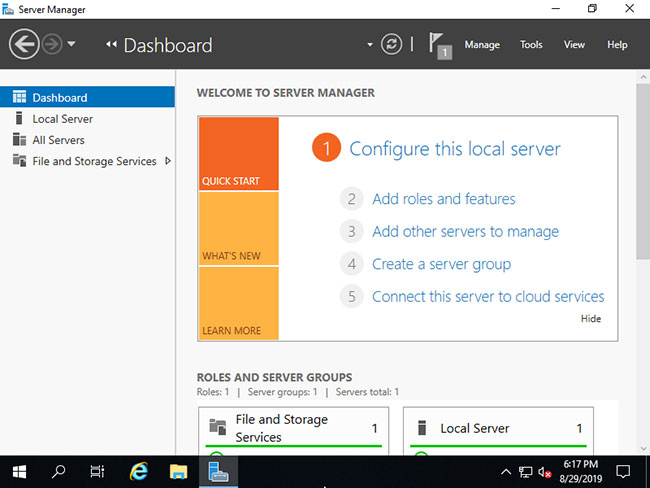
<p style="text-align: justify;">2. Chạy&nbsp;<strong>Server Manager</strong>&nbsp;và nhấp vào&nbsp;<strong>Add roles and features</strong>.</p>

<figure>
<div style="text-align: justify;">
<div style="text-align:center"><img alt="Nhấp vào Add roles and features" data-i="0" data-src="https://st.quantrimang.com/photos/image/2021/04/08/iis-tren-windows-server-2019-1.jpg" data-was-processed="true" height="638" src="https://st.quantrimang.com/photos/image/2021/04/08/iis-tren-windows-server-2019-1.jpg" width="850" /></div>
</div>

<figcaption>
<div style="text-align: justify;">Nhấp vào Add roles and features</div>
</figcaption>
</figure>

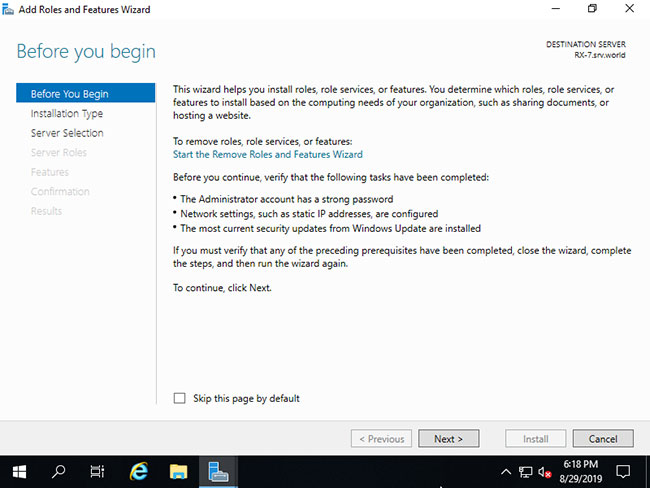
<p style="text-align: justify;">3. Nhấp vào nút&nbsp;<strong>Next</strong>.</p>

<figure>
<div style="text-align: justify;">
<div style="text-align:center"><img alt="Nhấp vào nút Next" data-i="1" data-src="https://st.quantrimang.com/photos/image/2021/04/08/iis-tren-windows-server-2019-2.jpg" data-was-processed="true" height="638" src="https://st.quantrimang.com/photos/image/2021/04/08/iis-tren-windows-server-2019-2.jpg" width="850" /></div>
</div>

<figcaption>
<div style="text-align: justify;">Nhấp vào nút Next</div>
</figcaption>
</figure>

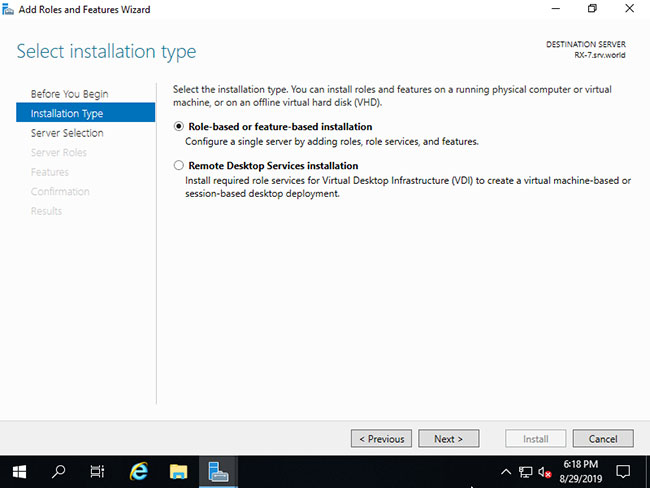
<p style="text-align: justify;">4. Chọn&nbsp;<strong>Role-based or feature-based installation</strong>.</p>

<figure>
<div style="text-align: justify;">
<div style="text-align:center"><img alt="Chọn Role-based or feature-based installation" data-i="2" data-src="https://st.quantrimang.com/photos/image/2021/04/08/iis-tren-windows-server-2019-3.jpg" data-was-processed="true" height="638" src="https://st.quantrimang.com/photos/image/2021/04/08/iis-tren-windows-server-2019-3.jpg" width="850" /></div>
</div>

<figcaption>
<div style="text-align: justify;">Chọn Role-based or feature-based installation</div>
</figcaption>
</figure>

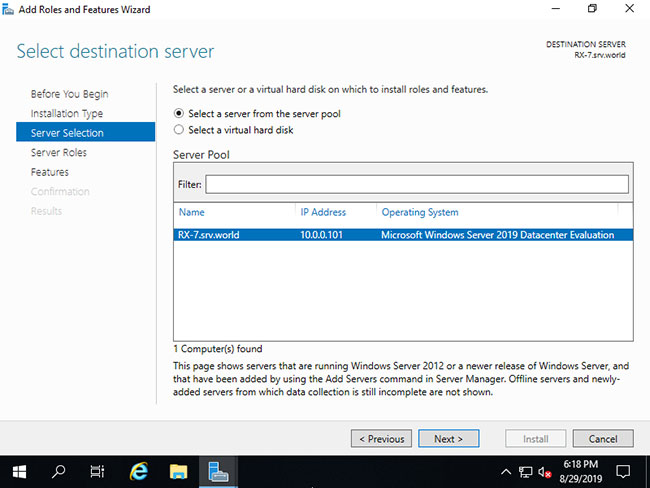
<p style="text-align: justify;">5. Chọn host bạn muốn thêm các service.</p>

<figure>
<div style="text-align: justify;">
<div style="text-align:center"><img alt="Chọn host bạn muốn thêm các service" data-i="3" data-src="https://st.quantrimang.com/photos/image/2021/04/08/iis-tren-windows-server-2019-4.jpg" data-was-processed="true" height="638" src="https://st.quantrimang.com/photos/image/2021/04/08/iis-tren-windows-server-2019-4.jpg" width="850" /></div>
</div>

<figcaption>
<div style="text-align: justify;">Chọn host bạn muốn thêm các service</div>
</figcaption>
</figure>

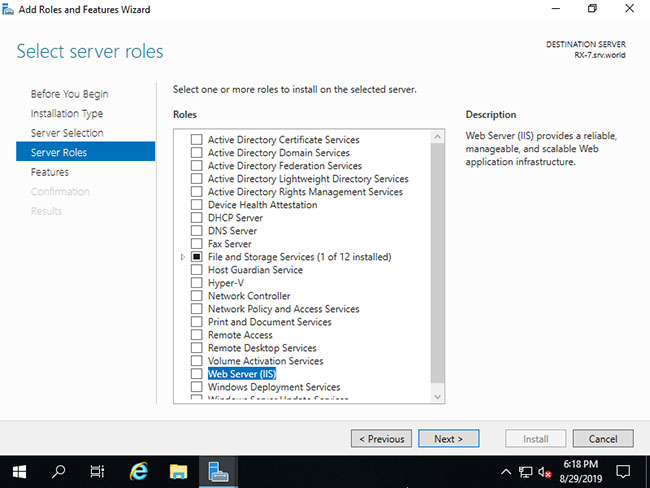
<p style="text-align: justify;">6. Tích vào hộp&nbsp;<strong>Web Server (IIS)</strong>.</p>

<figure>
<div style="text-align: justify;">
<div style="text-align:center"><img alt="Tích vào hộp Web Server (IIS)" data-i="4" data-src="https://st.quantrimang.com/photos/image/2021/04/08/iis-tren-windows-server-2019-5.jpg" data-was-processed="true" height="638" src="https://st.quantrimang.com/photos/image/2021/04/08/iis-tren-windows-server-2019-5.jpg" width="850" /></div>
</div>

<figcaption>
<div style="text-align: justify;">Tích vào hộp Web Server (IIS)</div>
</figcaption>
</figure>

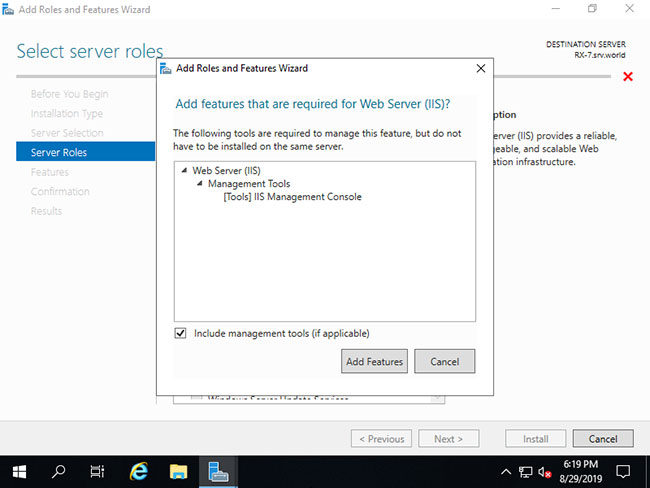
<p style="text-align: justify;">7. Các tính năng bổ sung được yêu cầu để thêm IIS Server. Nhấp vào nút&nbsp;<strong>Add Features &gt; Next</strong>.</p>

<figure>
<div style="text-align: justify;">
<div style="text-align:center"><img alt="Thêm các tính năng bổ sung" data-i="5" data-src="https://st.quantrimang.com/photos/image/2021/04/08/iis-tren-windows-server-2019-6.jpg" data-was-processed="true" height="638" src="https://st.quantrimang.com/photos/image/2021/04/08/iis-tren-windows-server-2019-6.jpg" width="850" /></div>
</div>

<figcaption>
<div style="text-align: justify;">Thêm các tính năng bổ sung</div>
</figcaption>
</figure>

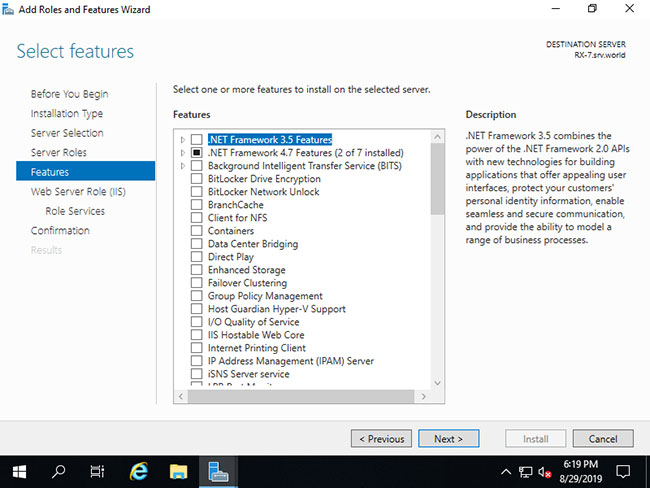
<p style="text-align: justify;">8. Nhấp vào nút&nbsp;<strong>Next.</strong></p>

<figure>
<div style="text-align: justify;">
<div style="text-align:center"><img alt="Nhấp vào nút Next" data-i="6" data-src="https://st.quantrimang.com/photos/image/2021/04/08/iis-tren-windows-server-2019-7.jpg" data-was-processed="true" height="638" src="https://st.quantrimang.com/photos/image/2021/04/08/iis-tren-windows-server-2019-7.jpg" width="850" /></div>
</div>

<figcaption>
<div style="text-align: justify;">Nhấp vào nút Next</div>
</figcaption>
</figure>

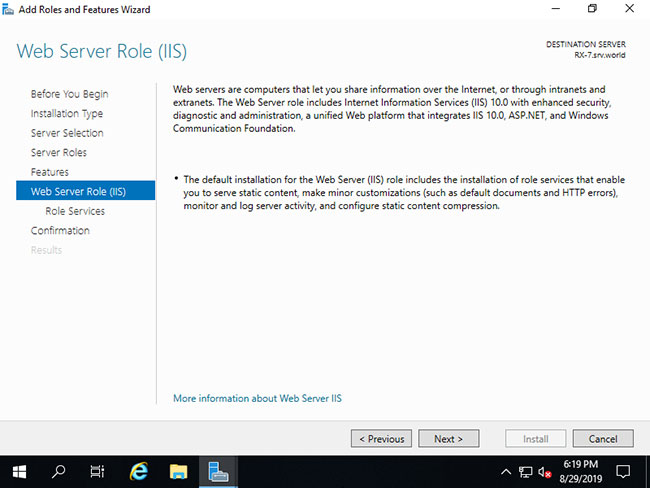
<p style="text-align: justify;">9. Nhấp vào nút&nbsp;<strong>Next.</strong></p>

<figure>
<div style="text-align: justify;">
<div style="text-align:center"><img alt="Nhấp vào nút Next" data-i="7" data-src="https://st.quantrimang.com/photos/image/2021/04/08/iis-tren-windows-server-2019-8.jpg" data-was-processed="true" height="638" src="https://st.quantrimang.com/photos/image/2021/04/08/iis-tren-windows-server-2019-8.jpg" width="850" /></div>
</div>

<figcaption>
<div style="text-align: justify;">Nhấp vào nút Next</div>
</figcaption>
</figure>

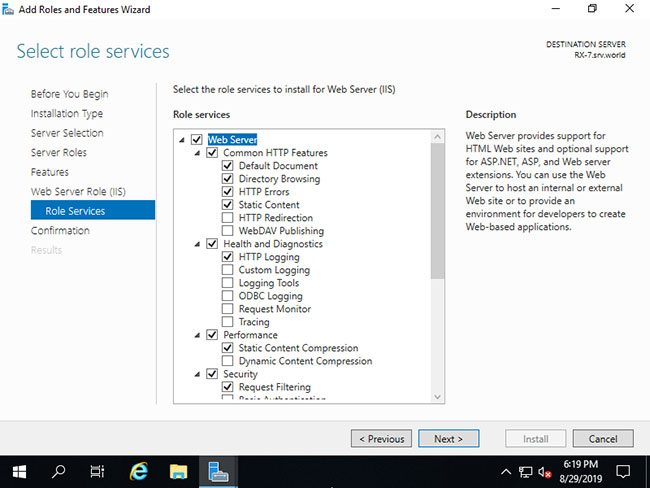
<p style="text-align: justify;">10. Đây là phần chọn các tính năng của Web Server. Hãy chọn những tính năng mà bạn muốn thêm. Trong ví dụ này, các tùy chọn mặc định được giữ nguyên. Tất nhiên, bạn có thể thêm các tính năng này sau khi cài đặt IIS.</p>

<figure>
<div style="text-align: justify;">
<div style="text-align:center"><img alt="Chọn các tính năng của Web Server" data-i="8" data-src="https://st.quantrimang.com/photos/image/2021/04/08/iis-tren-windows-server-2019-9.jpg" data-was-processed="true" height="638" src="https://st.quantrimang.com/photos/image/2021/04/08/iis-tren-windows-server-2019-9.jpg" width="850" /></div>
</div>

<figcaption>
<div style="text-align: justify;">Chọn các tính năng của Web Server</div>
</figcaption>
</figure>

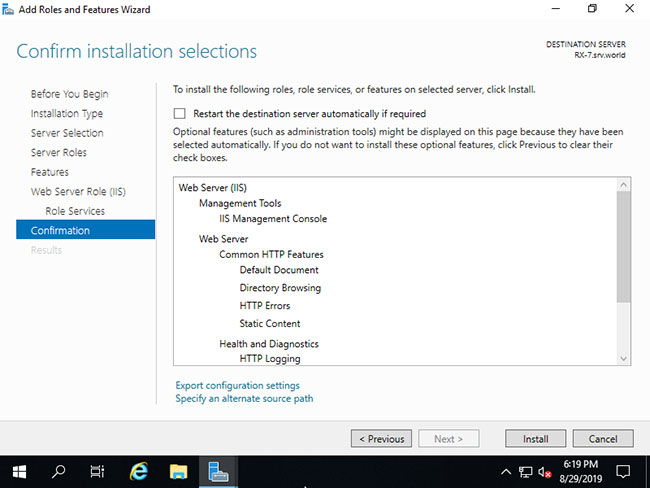
<p style="text-align: justify;">11. Nhấp vào nút&nbsp;<strong>Install.</strong></p>

<figure>
<div style="text-align: justify;">
<div style="text-align:center"><img alt="Nhấp vào nút Install" data-i="9" data-src="https://st.quantrimang.com/photos/image/2021/04/08/iis-tren-windows-server-2019-10.jpg" data-was-processed="true" height="638" src="https://st.quantrimang.com/photos/image/2021/04/08/iis-tren-windows-server-2019-10.jpg" width="850" /></div>
</div>

<figcaption>
<div style="text-align: justify;">Nhấp vào nút Install</div>
</figcaption>
</figure>

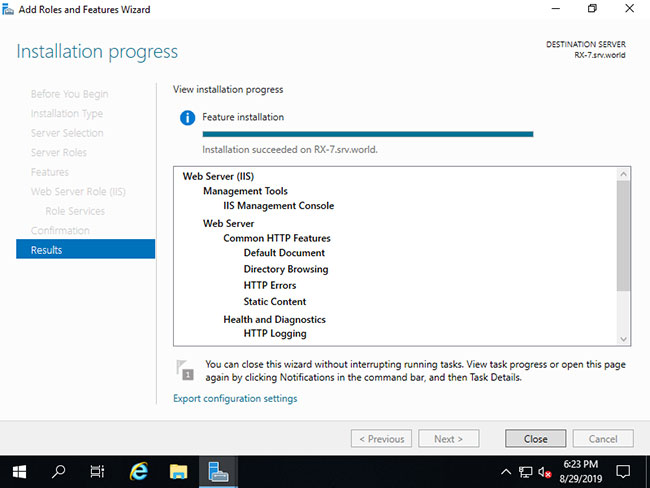
<p style="text-align: justify;">12. Sau khi kết thúc cài đặt, nhấp vào nút&nbsp;<strong>Close.</strong></p>

<figure>
<div style="text-align: justify;">
<div style="text-align:center"><img alt="Nhấp vào nút Close" data-i="10" data-src="https://st.quantrimang.com/photos/image/2021/04/08/iis-tren-windows-server-2019-11.jpg" data-was-processed="true" height="638" src="https://st.quantrimang.com/photos/image/2021/04/08/iis-tren-windows-server-2019-11.jpg" width="850" /></div>
</div>

<figcaption>
<div style="text-align: justify;">Nhấp vào nút Close</div>
</figcaption>
</figure>

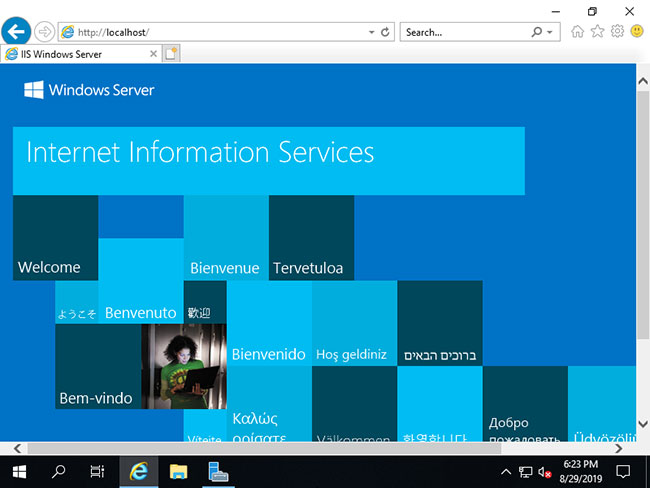
<p style="text-align: justify;">13. Chạy trình duyệt web và truy cập vào&nbsp;<strong>localhost</strong>, sau đó bạn có thể xác minh IIS có đang chạy bình thường không.</p>

<figure>
<div style="text-align: justify;">
<div style="text-align:center"><img alt="Xác minh IIS có đang chạy bình thường không" data-i="11" data-src="https://st.quantrimang.com/photos/image/2021/04/08/iis-tren-windows-server-2019-12.jpg" data-was-processed="true" height="638" src="https://st.quantrimang.com/photos/image/2021/04/08/iis-tren-windows-server-2019-12.jpg" width="850" /></div>
</div>

<figcaption>
<div style="text-align: justify;">Xác minh IIS có đang chạy bình thường không</div>
</figcaption>
</figure>

<h2 style="text-align: justify;">Sử dụng IIS trên Windows Server 2019</h2>

<p style="text-align: justify;">1. Chạy Powershell với quyền admin và cấu hình như sau:</p>

<pre id="pre1">
<code>Windows PowerShell
Copyright (C) Microsoft Corporation. All rights reserved.

# show Sites list : &#91;Default Web Site&#93; is only set
PS C:\Users\Administrator&gt; Get-Website 

Name             ID   State      Physical Path                  Bindings
----             --   -----      -------------                  --------
Default Web Site 1    Started    %SystemDrive%\inetpub\wwwroot  http *:80:

# &#91;Physical Path&#93; is the Document Root
PS C:\Users\Administrator&gt; Get-ChildItem C:\inetpub\wwwroot 

    Directory: C:\inetpub\wwwroot

Mode                LastWriteTime         Length Name
----                -------------         ------ ----
-a----        8/27/2019   6:57 PM            703 iisstart.htm
-a----        8/27/2019   6:57 PM          99710 iisstart.png

# verify accesses : &#91;iisstart.htm&#93; responds
PS C:\Users\Administrator&gt; Invoke-WebRequest localhost 

StatusCode        : 200
StatusDescription : OK
Content           : &lt;!DOCTYPE html PUBLIC &quot;-//W3C//DTD XHTML 1.0 Strict//EN&quot;
.....
.....
ParsedHtml        : System.__ComObject
RawContentLength  : 703

# confirm default documents
PS C:\Users\Administrator&gt; Get-WebConfigurationProperty -Filter &quot;//defaultDocument/files/add&quot; -PSPath &quot;IIS:\Sites\Default Web Site&quot; -Name &quot;value&quot; | select value 

Value
-----
Default.htm
Default.asp
index.htm
index.html
iisstart.htm

# create a test page under the Document Root and verify working
# &#91;Write-Output&#93; generates with UTF-16, so specify encoding explicitly with &#91;Out-File&#93;
PS C:\Users\Administrator&gt; Write-Output &quot;IIS Default Start Page&quot; | Out-File C:\inetpub\wwwroot\Default.htm -Encoding Default 

# verify accesses
# for &#91;curl.exe&#93;, specify extension ⇒ if not specify extension, &#91;curl&#93; is an Alias from &#91;Invoke-WebRequest&#93;
PS C:\Users\Administrator&gt; curl.exe localhost 
IIS Default Start Page</code></pre>

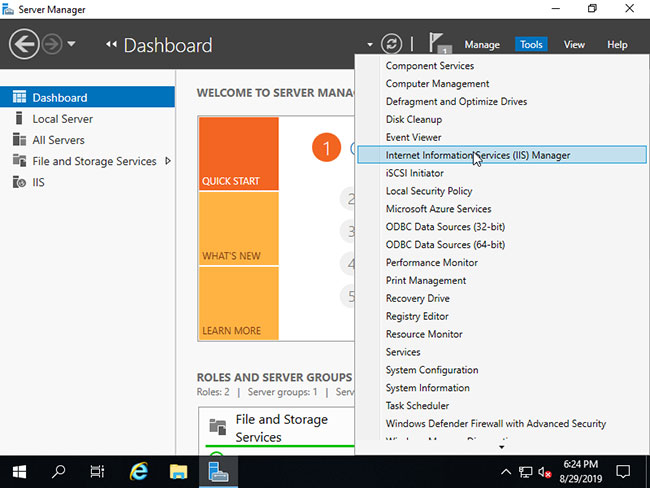
<p style="text-align: justify;">2. Chạy&nbsp;<strong>Start &gt; Server Manager</strong>&nbsp;và nhấp vào&nbsp;<strong>Tools &gt; Internet Information Services (IIS) Manager</strong>.</p>

<figure>
<div style="text-align: justify;">
<div style="text-align:center"><img alt="Nhấp vào Tools &gt; Internet Information Services (IIS) Manager" data-i="12" data-src="https://st.quantrimang.com/photos/image/2021/04/08/iis-tren-windows-server-2019-13.jpg" data-was-processed="true" height="638" src="https://st.quantrimang.com/photos/image/2021/04/08/iis-tren-windows-server-2019-13.jpg" width="850" /></div>
</div>

<figcaption>
<div style="text-align: justify;">Nhấp vào Tools &gt; Internet Information Services (IIS) Manager</div>
</figcaption>
</figure>

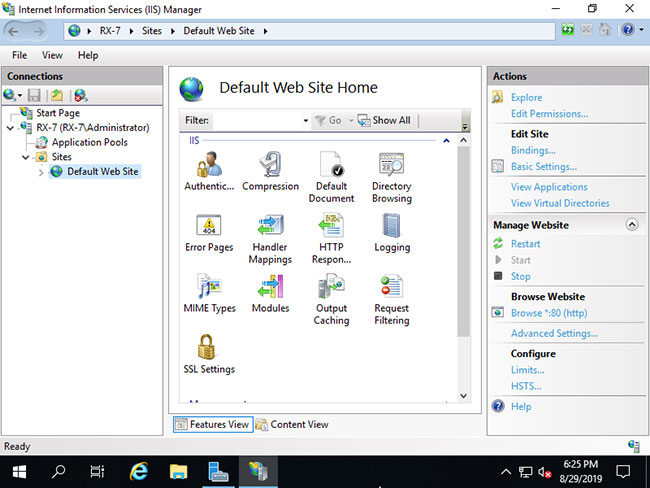
<p style="text-align: justify;">3. Mở các mục ở bảng điều khiển bên trái,&nbsp;<strong>Default Web Site</strong>&nbsp;được cấu hình.</p>

<figure>
<div style="text-align: justify;">
<div style="text-align:center"><img alt="Default Web Site được cấu hình" data-i="13" data-src="https://st.quantrimang.com/photos/image/2021/04/08/iis-tren-windows-server-2019-14.jpg" data-was-processed="true" height="638" src="https://st.quantrimang.com/photos/image/2021/04/08/iis-tren-windows-server-2019-14.jpg" width="850" /></div>
</div>

<figcaption>
<div style="text-align: justify;">Default Web Site được cấu hình</div>
</figcaption>
</figure>

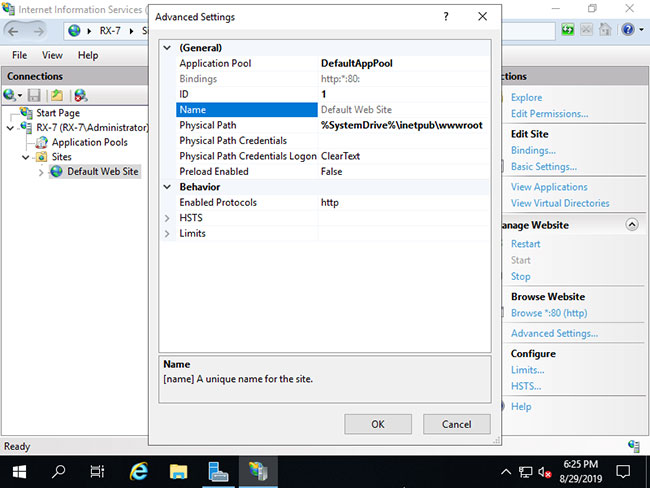
<p style="text-align: justify;">4. Chọn&nbsp;<strong>Default Web Site</strong>&nbsp;và nhấp vào&nbsp;<strong>Advanced Settings...</strong>, sau đó có thể xác nhận các cài đặt như&nbsp;<strong>Physical Path (Document Root)</strong>, v.v...</p>

<figure>
<div style="text-align: justify;">
<div style="text-align:center"><img alt="Chọn Default Web Site và nhấp vào Advanced Settings..." data-i="14" data-src="https://st.quantrimang.com/photos/image/2021/04/08/iis-tren-windows-server-2019-15.jpg" data-was-processed="true" height="638" src="https://st.quantrimang.com/photos/image/2021/04/08/iis-tren-windows-server-2019-15.jpg" width="850" /></div>
</div>

<figcaption>
<div style="text-align: justify;">Chọn Default Web Site và nhấp vào Advanced Settings...</div>
</figcaption>
</figure>

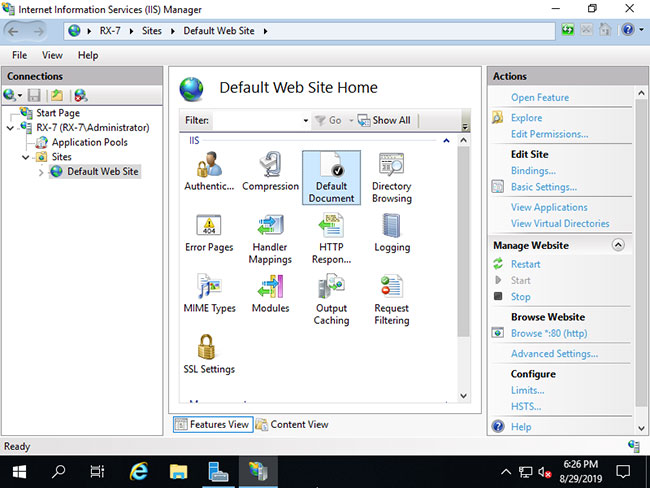
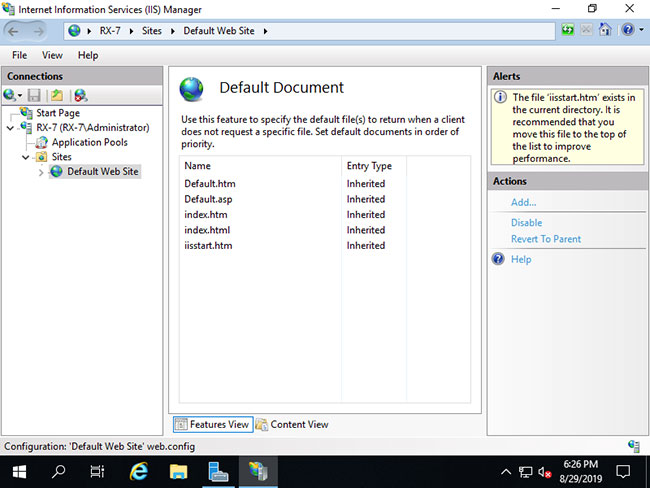
<p style="text-align: justify;">5. Mở&nbsp;<strong>Default Document</strong>, sau đó có thể xác nhận các tài liệu mặc định.</p>

<figure>
<div style="text-align: justify;">
<div style="text-align:center"><img alt="Mở Default Document" data-i="15" data-src="https://st.quantrimang.com/photos/image/2021/04/08/iis-tren-windows-server-2019-16.jpg" data-was-processed="true" height="638" src="https://st.quantrimang.com/photos/image/2021/04/08/iis-tren-windows-server-2019-16.jpg" width="850" /></div>
</div>

<figcaption>
<div style="text-align: justify;">Mở Default Document</div>
</figcaption>
</figure>

<p style="text-align: justify;">6. Bạn có thể xem các tài liệu mặc định.</p>

<figure>
<div style="text-align: justify;">
<div style="text-align:center"><img alt="Bạn có thể xem các tài liệu mặc định" data-i="16" data-src="https://st.quantrimang.com/photos/image/2021/04/08/iis-tren-windows-server-2019-17.jpg" data-was-processed="true" height="638" src="https://st.quantrimang.com/photos/image/2021/04/08/iis-tren-windows-server-2019-17.jpg" width="850" /></div>
</div>

<figcaption>
<div style="text-align: justify;">Bạn có thể xem các tài liệu mặc định</div>
</figcaption>
</figure>

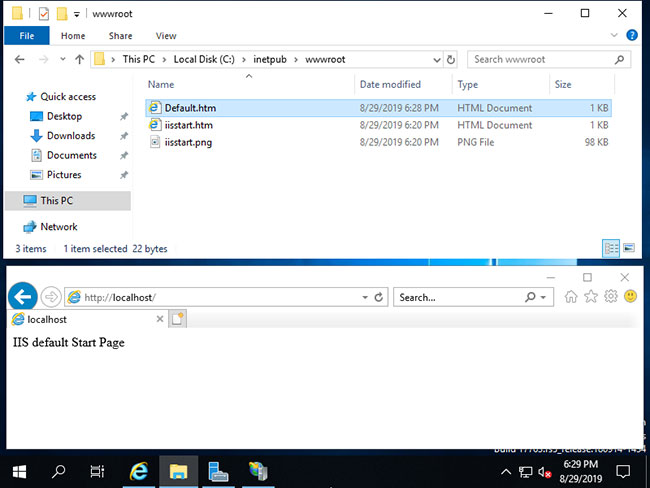
<p style="text-align: justify;">7. Tạo trang test trong Physical Path (Document Root) và xác minh quyền truy cập bằng trình duyệt web.</p>

<figure>
<div style="text-align: justify;">
<div style="text-align:center"><img alt="Tạo trang test trong Physical Path (Document Root)" data-i="17" data-src="https://st.quantrimang.com/photos/image/2021/04/08/iis-tren-windows-server-2019-18.jpg" data-was-processed="true" height="638" src="https://st.quantrimang.com/photos/image/2021/04/08/iis-tren-windows-server-2019-18.jpg" width="850" /></div>
</div>

<figcaption>
<div style="text-align: justify;">Tạo trang test trong Physical Path (Document Root)</div>
</figcaption>
</figure>

<h1>SỬA CHỮA MÁY TÍNH TẠI NHÀ Ở&nbsp;HÓC MÔN</h1>
SỬA CHỮA MÁY TÍNH TẠI NHÀ Ở HỒ CHÍ MINH

<p>Với dịch vụ sửa máy tính tại nhà ở Hóc Môn và dịch vụ sửa máy tính tại nhà ở TP.HCM, Công ty Phát Thành Đạt&nbsp;sẽ luôn đem lại sự hài lòng nhất tới cho bạn, dịch vụ sửa chữa máy tính tại nhà luôn đồng hành cùng bạn từ (8h tới 17h trong ngày). Bảo trì định kỳ mỗi tháng (vệ sinh máy tính, update virus, tối ưu hệ thống...). Liên hệ Hotline 0908.554.558 - Info@phatthanhdat.com</p>

<p style="text-align: justify;">Chúc bạn thực hiện thành công!<br />
<br />
Xem thêm<br />
1.&nbsp;<a href="https://phatthanhdat.com/quan-tri-mang/windows-server-2019-69.html">Tải và cài đặt Windows Server 2019</a><br />
2.&nbsp;<a href="https://phatthanhdat.com/quan-tri-mang/cach-cai-dat-vpn-tren-windows-server-2019-71.html" title="Cách cài đặt VPN trên Windows Server 2019">Cách cài đặt VPN trên Windows Server 2019</a><br />
3.&nbsp;<a href="https://phatthanhdat.com/quan-tri-mang/cach-thiet-lap-ban-dau-windows-server-2019-72.html" title="Cách thiết lập ban đầu Windows Server 2019">Cách thiết lập ban đầu Windows Server 2019</a></p>
		</div>
	</div>
	<div id="footer" class="clearfix">
		<div id="url">
			<strong>URL của bản tin này: </strong><a href="https://phatthanhdat.com/index.php/savefile/quan-tri-mang/cach-cai-dat-va-su-dung-iis-tren-windows-server-2019-73.html" title="Cách cài đặt và sử dụng IIS trên Windows Server 2019">https://phatthanhdat.com/index.php/savefile/quan-tri-mang/cach-cai-dat-va-su-dung-iis-tren-windows-server-2019-73.html</a>

		</div>
		<div class="clear"></div>
		<div class="copyright">
			&copy; Phát Thành Đạt - Dịch vụ sửa chữa máy tính hóc môn
		</div>
		<div id="contact">
			<a href="mailto:info@phatthanhdat.com">info@phatthanhdat.com</a>
		</div>
	</div>
</div>
        <div id="timeoutsess" class="chromeframe">
            Bạn đã không sử dụng Site, <a onclick="timeoutsesscancel();" href="https://phatthanhdat.com/#">Bấm vào đây để duy trì trạng thái đăng nhập</a>. Thời gian chờ: <span id="secField"> 60 </span> giây
        </div>
        <div id="openidResult" class="nv-alert" style="display:none"></div>
        <div id="openidBt" data-result="" data-redirect=""></div>
<div id="run_cronjobs" style="visibility:hidden;display:none;"><img alt="cron" src="/index.php?second=cronjobs&amp;p=u8EY51JJ" width="1" height="1" /></div>
<script src="https://phatthanhdat.com/assets/js/jquery/jquery.min.js"></script>
<script>var nv_base_siteurl="/",nv_lang_data="vi",nv_lang_interface="vi",nv_name_variable="nv",nv_fc_variable="op",nv_lang_variable="language",nv_module_name="news",nv_func_name="savefile",nv_is_user=0, nv_my_ofs=-4,nv_my_abbr="EDT",nv_cookie_prefix="nv4",nv_check_pass_mstime=1738000,nv_area_admin=0,nv_safemode=0,theme_responsive=0,nv_recaptcha_ver=2,nv_recaptcha_sitekey="",nv_recaptcha_type="image",XSSsanitize=1;</script>
<script src="https://phatthanhdat.com/assets/js/language/vi.js"></script>
<script src="https://phatthanhdat.com/assets/js/DOMPurify/purify3.js"></script>
<script src="https://phatthanhdat.com/assets/js/global.js"></script>
<script src="https://phatthanhdat.com/assets/js/site.js"></script>
<script src="https://phatthanhdat.com/themes/default/js/news.js"></script>
<script src="https://phatthanhdat.com/themes/default/js/main.js"></script>
<script src="https://phatthanhdat.com/themes/default/js/custom.js"></script>
<script type="application/ld+json">
        {
            "@context": "https://schema.org",
            "@type": "Organization",
            "url": "https://phatthanhdat.com",
            "logo": "https://phatthanhdat.com/uploads/about/logonho.png"
        }
        </script>
<script async custom-element="amp-ad" src="https://cdn.ampproject.org/v0/amp-ad-0.1.js"></script>
<script>
     (adsbygoogle = window.adsbygoogle || []).push({});
</script>
<script>(function(w,d,s,l,i){w[l]=w[l]||[];w[l].push({'gtm.start':
new Date().getTime(),event:'gtm.js'});var f=d.getElementsByTagName(s)[0],
j=d.createElement(s),dl=l!='dataLayer'?'&l='+l:'';j.async=true;j.src=
'https://www.googletagmanager.com/gtm.js?id='+i+dl;f.parentNode.insertBefore(j,f);
})(window,document,'script','dataLayer','GTM-KRZZ2CK');</script>
<script>
!function(f,b,e,v,n,t,s)
{if(f.fbq)return;n=f.fbq=function(){n.callMethod?
n.callMethod.apply(n,arguments):n.queue.push(arguments)};
if(!f._fbq)f._fbq=n;n.push=n;n.loaded=!0;n.version='2.0';
n.queue=[];t=b.createElement(e);t.async=!0;
t.src=v;s=b.getElementsByTagName(e)[0];
s.parentNode.insertBefore(t,s)}(window, document,'script',
'https://connect.facebook.net/en_US/fbevents.js');
fbq('init', '219812430112623');
fbq('track', 'PageView');
</script>
<script async src="https://pagead2.googlesyndication.com/pagead/js/adsbygoogle.js?client=ca-pub-3722185033130810" crossorigin="anonymous"></script>
<script>
      var chatbox = document.getElementById('fb-customer-chat');
      chatbox.setAttribute("page_id", "244380242794992");
      chatbox.setAttribute("attribution", "biz_inbox");

      window.fbAsyncInit = function() {
        FB.init({
          xfbml            : true,
          version          : 'v11.0'
        });
      };

      (function(d, s, id) {
        var js, fjs = d.getElementsByTagName(s)[0];
        if (d.getElementById(id)) return;
        js = d.createElement(s); js.id = id;
        js.src = 'https://connect.facebook.net/vi_VN/sdk/xfbml.customerchat.js';
        fjs.parentNode.insertBefore(js, fjs);
      }(document, 'script', 'facebook-jssdk'));
    </script>
<script src="https://sp.zalo.me/plugins/sdk.js"></script>
<script>
     (adsbygoogle = window.adsbygoogle || []).push({});
</script>
<script src="https://phatthanhdat.com/themes/default/js/bootstrap.min.js"></script>
</body>
</html>